How to create a profile in PersonaHub
Choose a name and appearance, optionally set up a node, then create and launch an independent browser profile.
A PersonaHub profile is an independent browser identity with its own isolated browser data and settings. Follow these steps in the PersonaHub desktop app. If you haven't installed it yet, see Install PersonaHub on macOS or visit the download page.
The app calls a configured proxy a node. This guide uses that label to match the interface.
1. Open Create profile
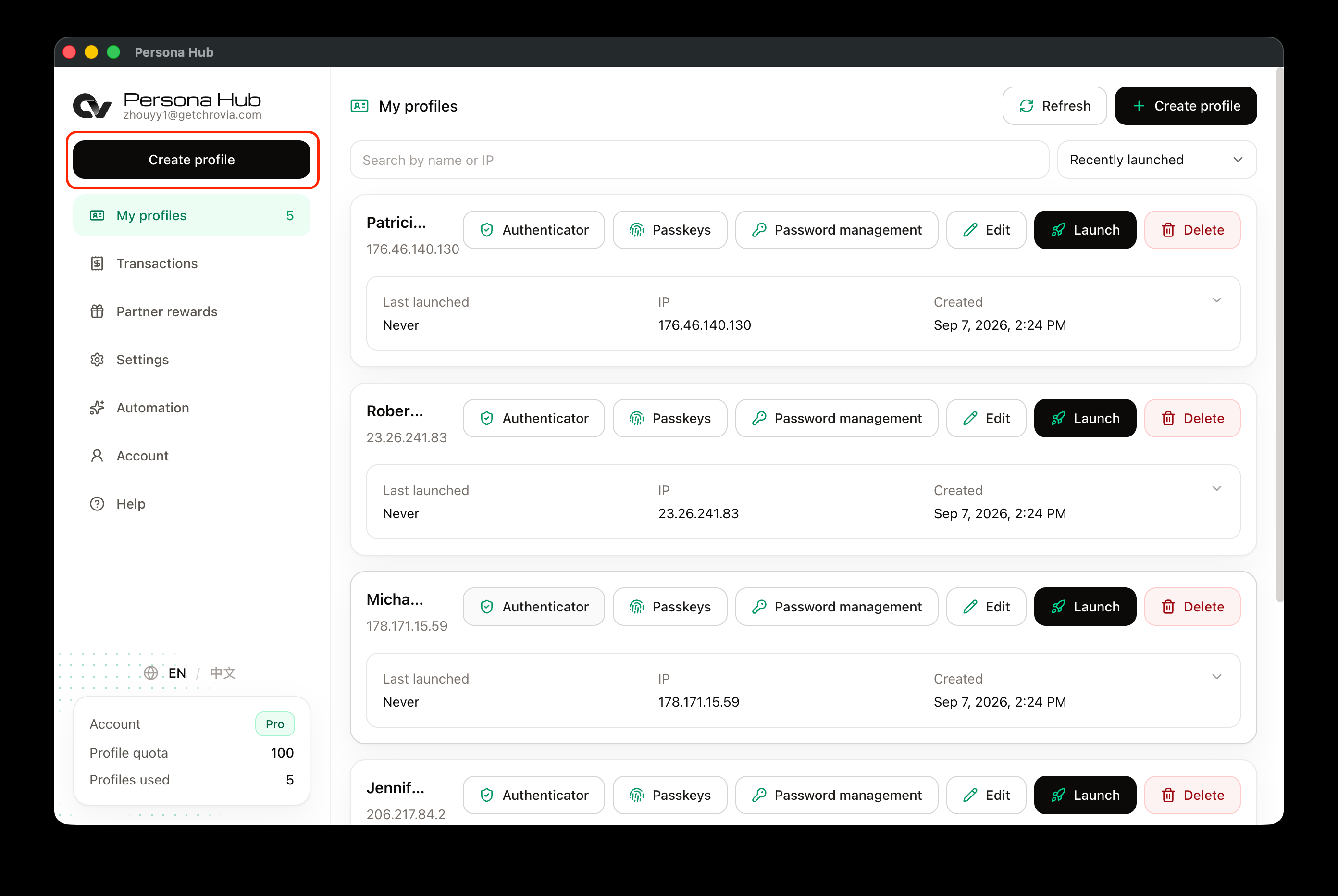
Sign in to PersonaHub and click Create profile in the left sidebar. You can also use the button at the top right of My profiles.
2. Choose a name and appearance
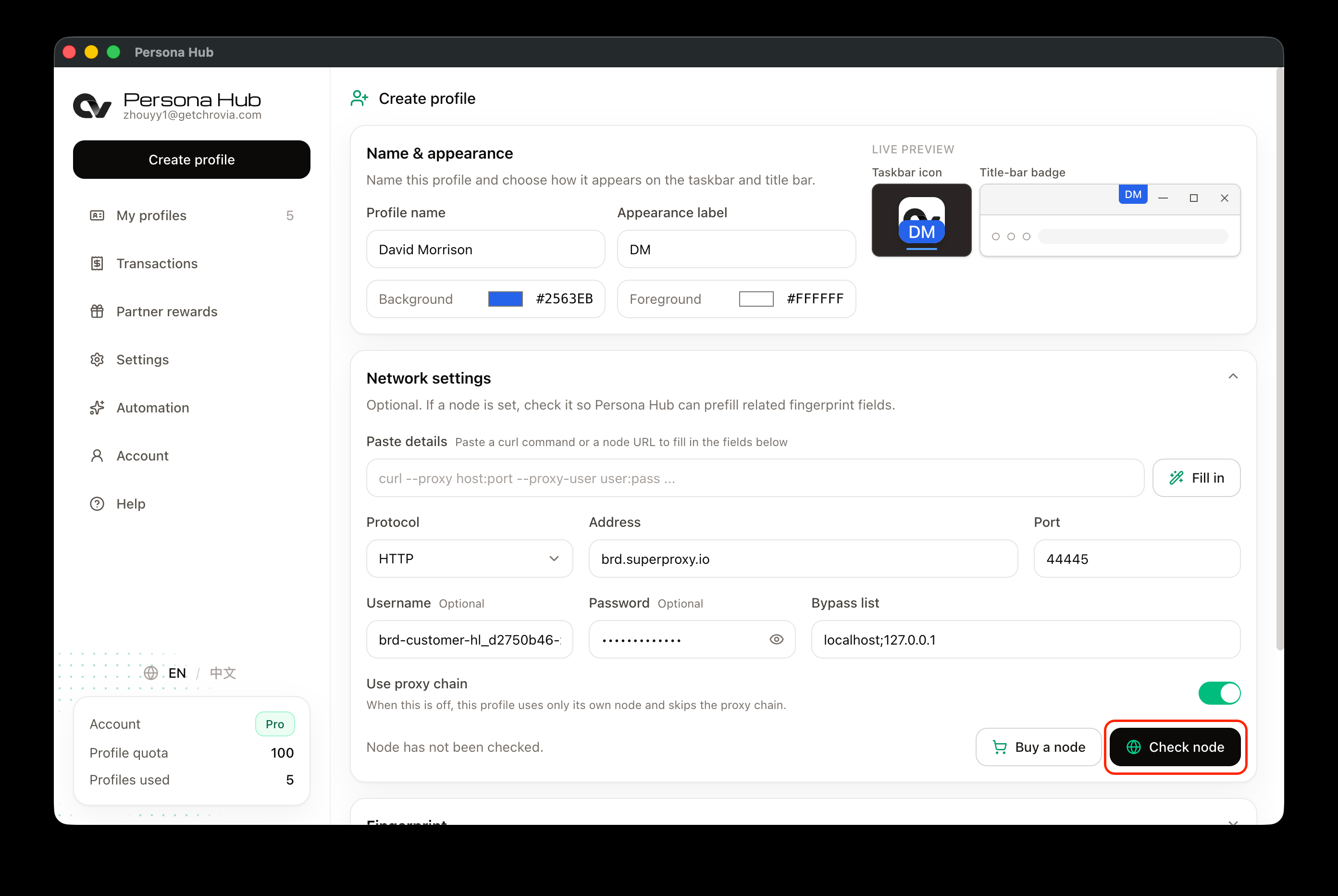
Under Name & appearance, fill in:
- Profile name: a name you can easily recognize. This example uses David Morrison.
- Appearance label: a short label to help distinguish this browser window from others. This example uses DM.
- Background and Foreground: choose colors or keep the defaults. The preview on the right shows the icon and title-bar badge.
3. Add a node if needed
Network settings are optional. If you don't have a node, leave it blank and continue creating the profile.
To use a node, enter the Protocol, Address, and Port supplied by your provider. If authentication is required, enter the Username and Password as well. These are the node's credentials, not the account you plan to sign in to on a website. Use your own node details rather than copying those in the screenshot.
If your provider supplies a curl command or node URL, paste it into Paste details, then click Fill in.
For complete purchase and setup walkthroughs, see Thordata proxy integration and IPRoyal proxy integration.
Use proxy chain controls whether this profile uses the proxy chain configured in Settings. When turned off, the profile uses only its own node.
Once the details are filled in, click Check node.
4. Check the result
A successful check displays the node's IP address, city, and country below the network settings. This example shows Miami, US. PersonaHub also fills in the timezone under Fingerprint based on the result.
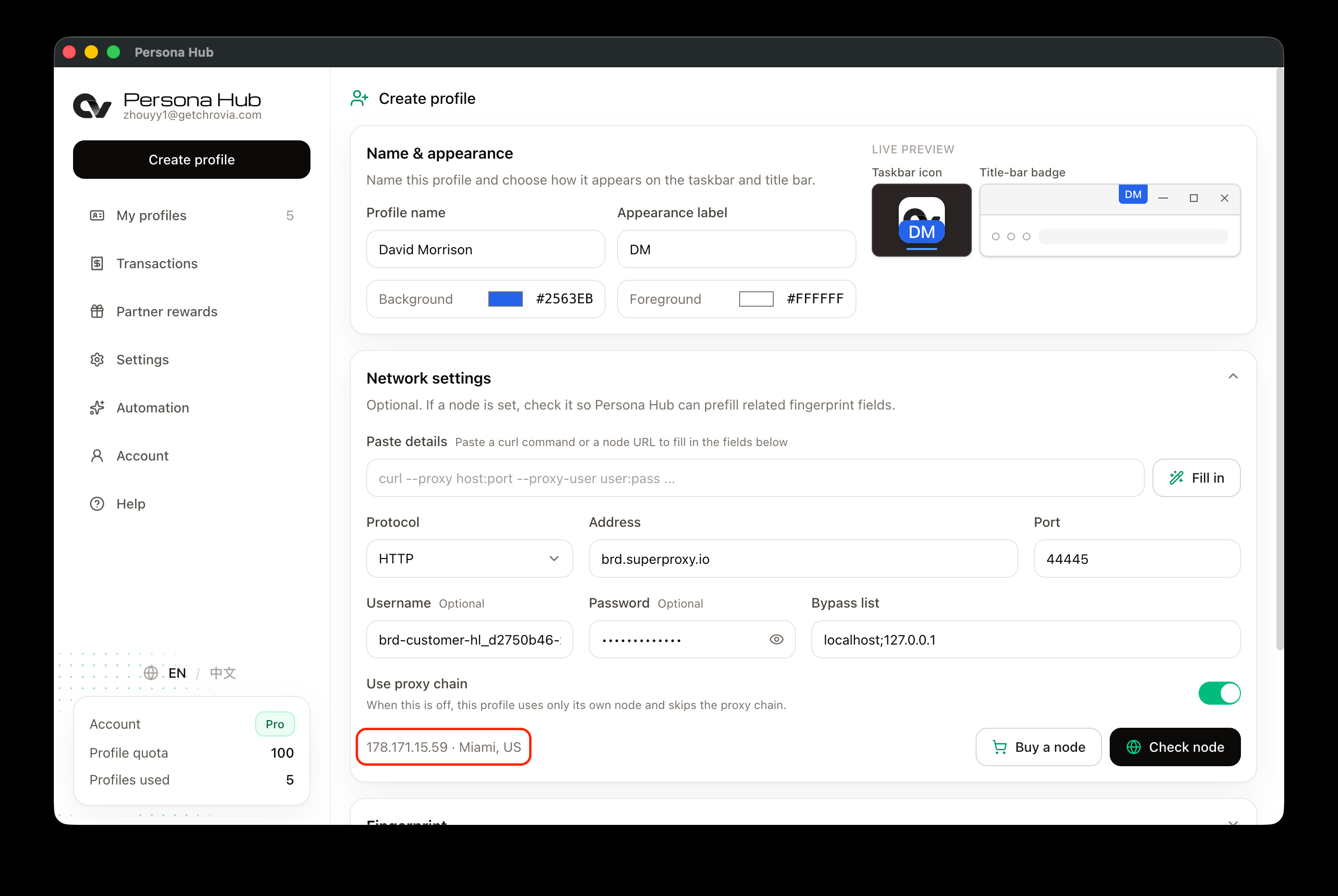
If a node is configured, it must pass the check before you can create the profile. If the check fails, verify the address, port, and credentials, then try again. Check the node again after changing its configuration.
You can adjust Fingerprint and the startup settings below, or keep the defaults if you don't need specific settings.
CPU and memory settings are randomized for each new profile or reset. Once saved, later launches reuse those values. You can also adjust them manually.
WebRTC defaults to Restrict UDP. Choose a connection mode in its separate card. UDP-enabled modes may expose direct IP addresses; close and relaunch the browser after changes.
Browser version defaults to Automatic, which selects the highest available version matching the engine's major version. You can also choose a version manually.
Speech voices offers No override, Full override (default), and Append Google voices only. Font allowlist offers No override or Full override (default), using the preset list for the host system. Relaunch the browser after changes.
Canvas 2D noise is enabled by default and can be turned off under Fingerprint. It only controls pixel noise in readback and image exports from regular and offscreen Canvas 2D contexts, without affecting WebGL, WebGPU, or other noise. Relaunch the browser after changes.
5. Create and launch
Scroll to the bottom of the form and click Create profile. Once it is created, PersonaHub returns to My profiles, where the new profile appears.
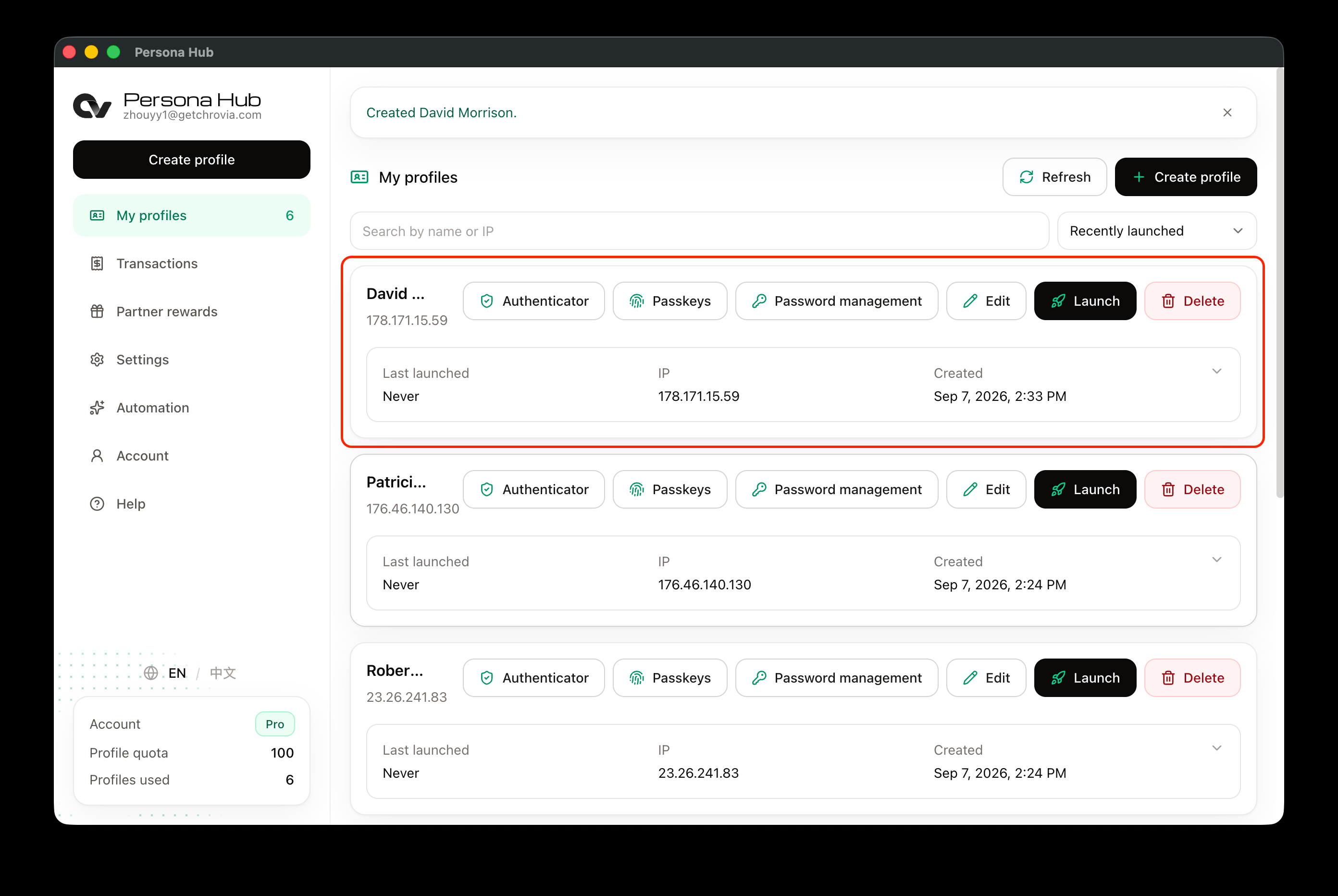
Click Launch on the profile to open its own browser window, then visit a website and sign in. To use the same account later, launch this profile from the list again. There is no need to create a new one. For a walkthrough, see How to launch a profile browser.
6. Export and import a profile
To duplicate a profile or move it to another PersonaHub account, export it and then import it on the Create profile page.
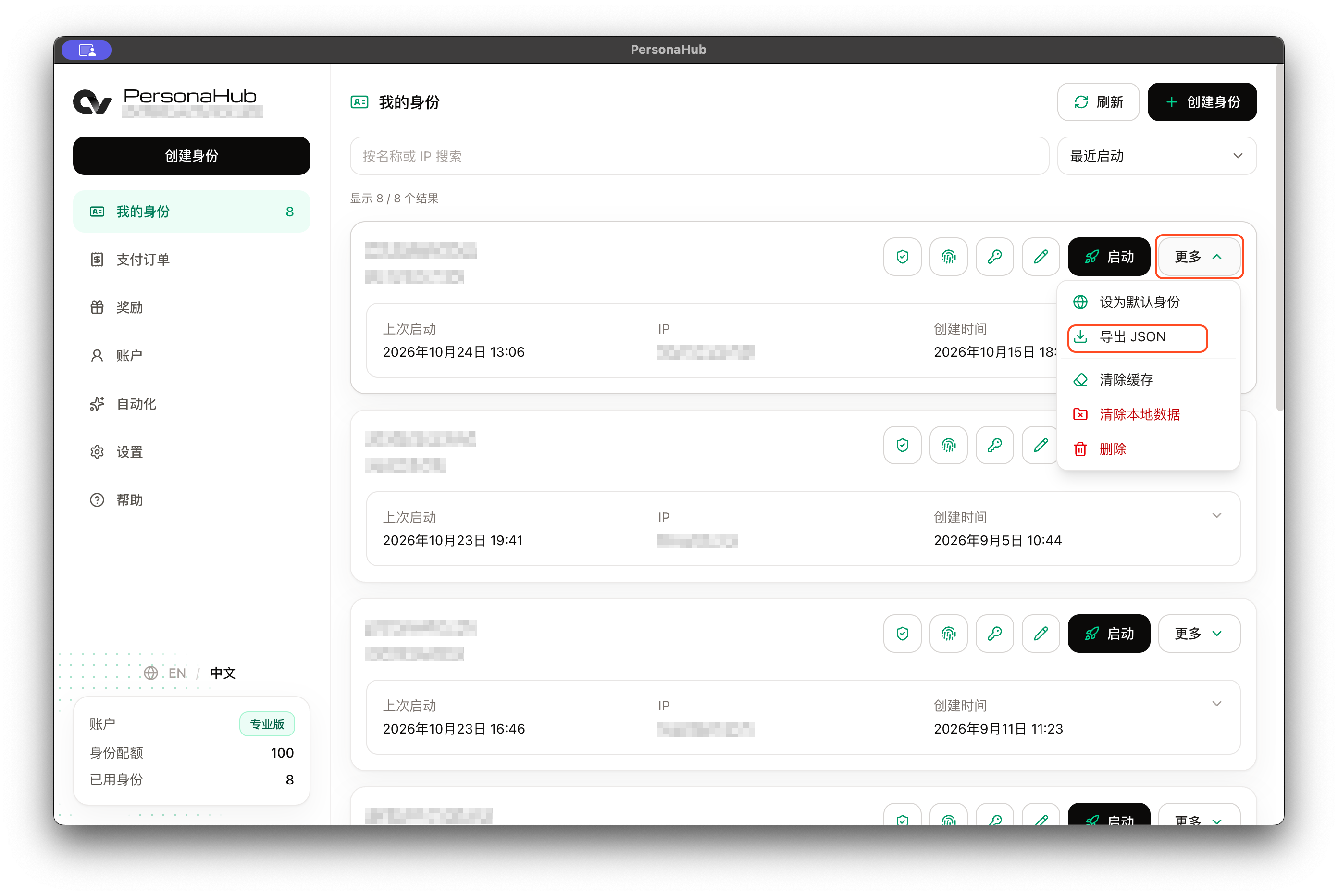
Export: In the My profiles list, open the target profile's More menu and select Export JSON. The exported file contains the profile's complete configuration (name, appearance, node, fingerprint, startup URL, and extra arguments) along with its saved passwords, authenticators, and passkeys. Because node credentials, account passwords, and private keys are stored in plain text, keep this file secure.
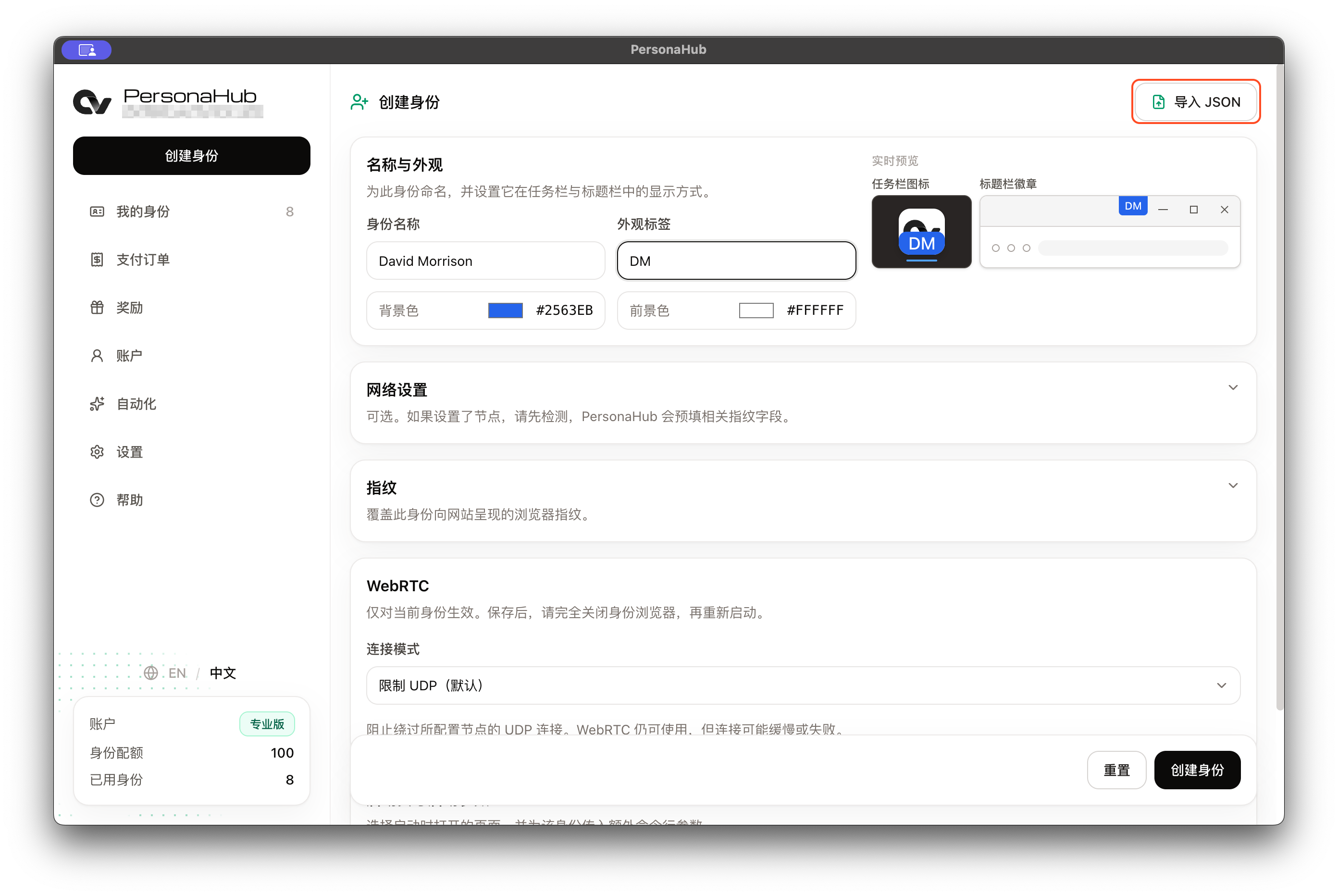
Import: Open Create profile, click Import JSON in the top-right corner, and select the exported file. The form will populate automatically. Review the settings, then click Create profile to save the new identity along with its passwords, authenticators, and passkeys.
Importing always creates a brand-new profile and consumes one profile slot; it never overwrites an existing profile. The new profile is assigned a fresh noise seed. Local browser runtime data (such as cookies, active sessions, and browsing history) is not exported, so you will need to sign in to websites again after importing. Passkeys are available on the Pro plan.