Manage local profile data and clear cache
Learn how to clear cache and local browser data for individual or all PersonaHub profiles, configure custom data directories, and protect account credentials.
Clean up data for an individual profile
In the My profiles list, open the More menu next to any profile to clean up its local browser data on this computer.
Note: Before cleaning up, quit the profile browser. Cleanup is blocked while its browser process is running.
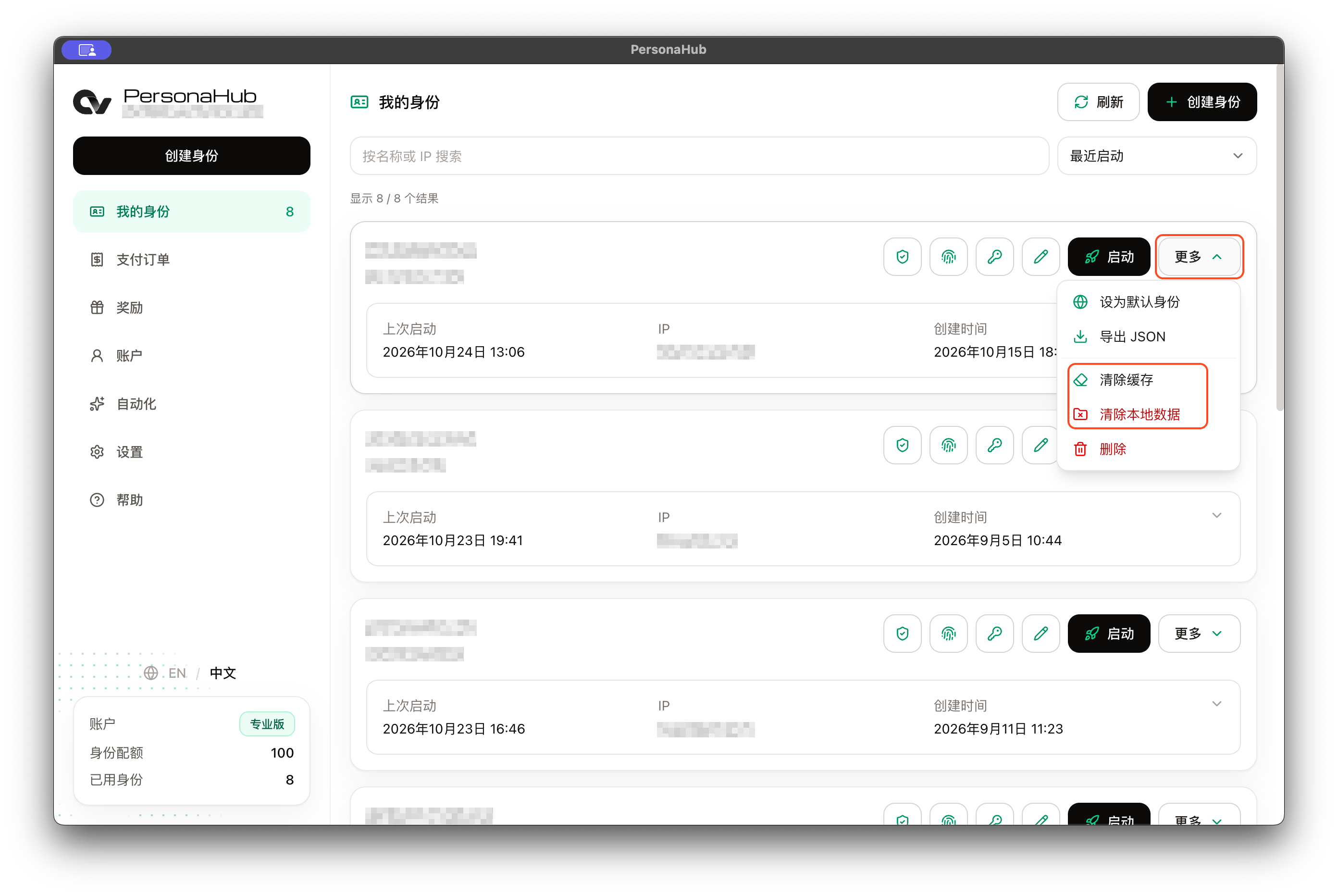
PersonaHub provides two levels of data cleanup:
| Cleanup action | What is removed | What is retained |
|---|---|---|
| Clear cache | Files in the selected profile’s disk cache directory | Active website login sessions, cookies, IndexedDB, and site storage data |
| Clear local data | All local browser runtime data and cache for the selected profile, including cookies, login states, browsing history, and local extensions | The profile configuration, proxy nodes, and metadata stored in your cloud account |
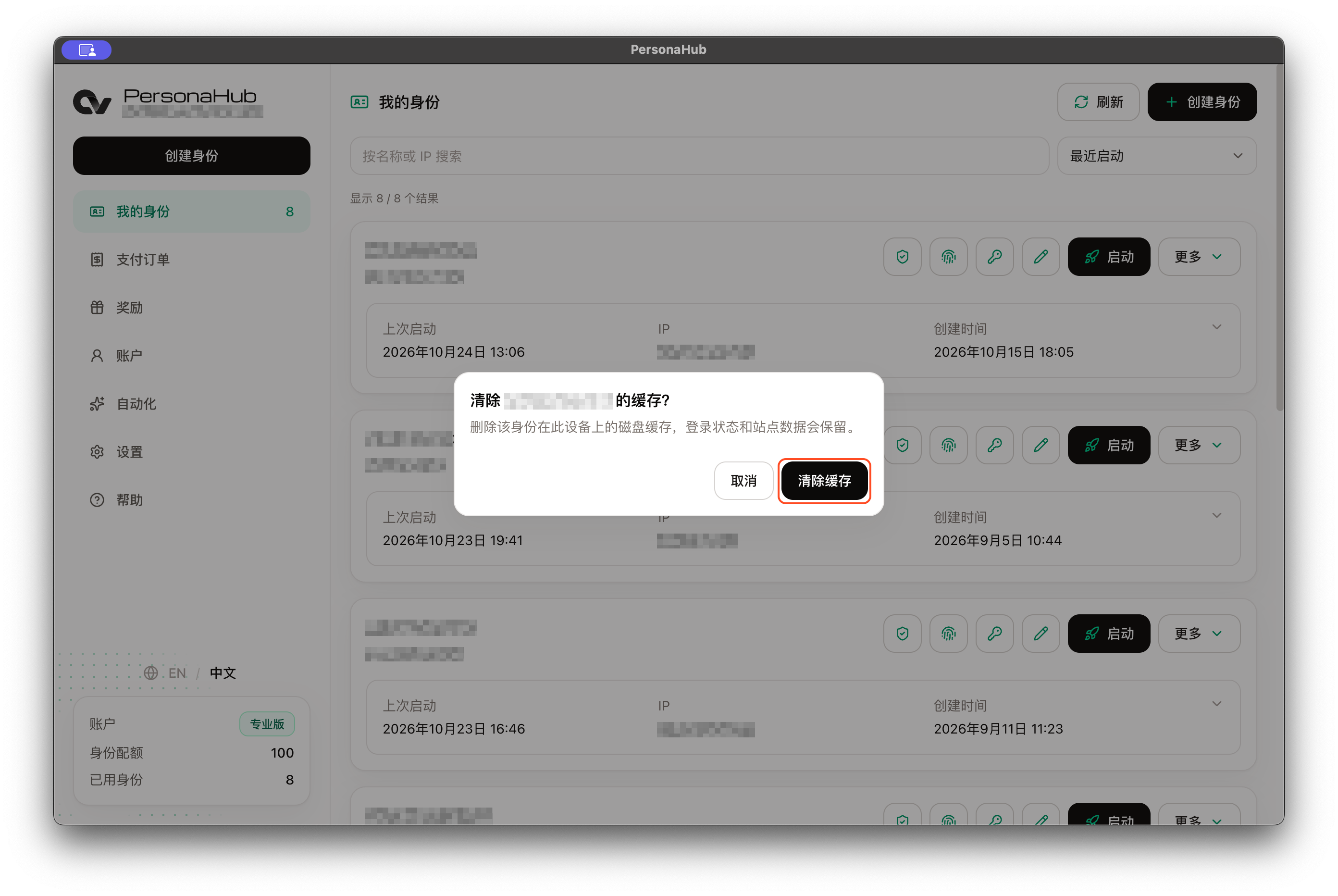
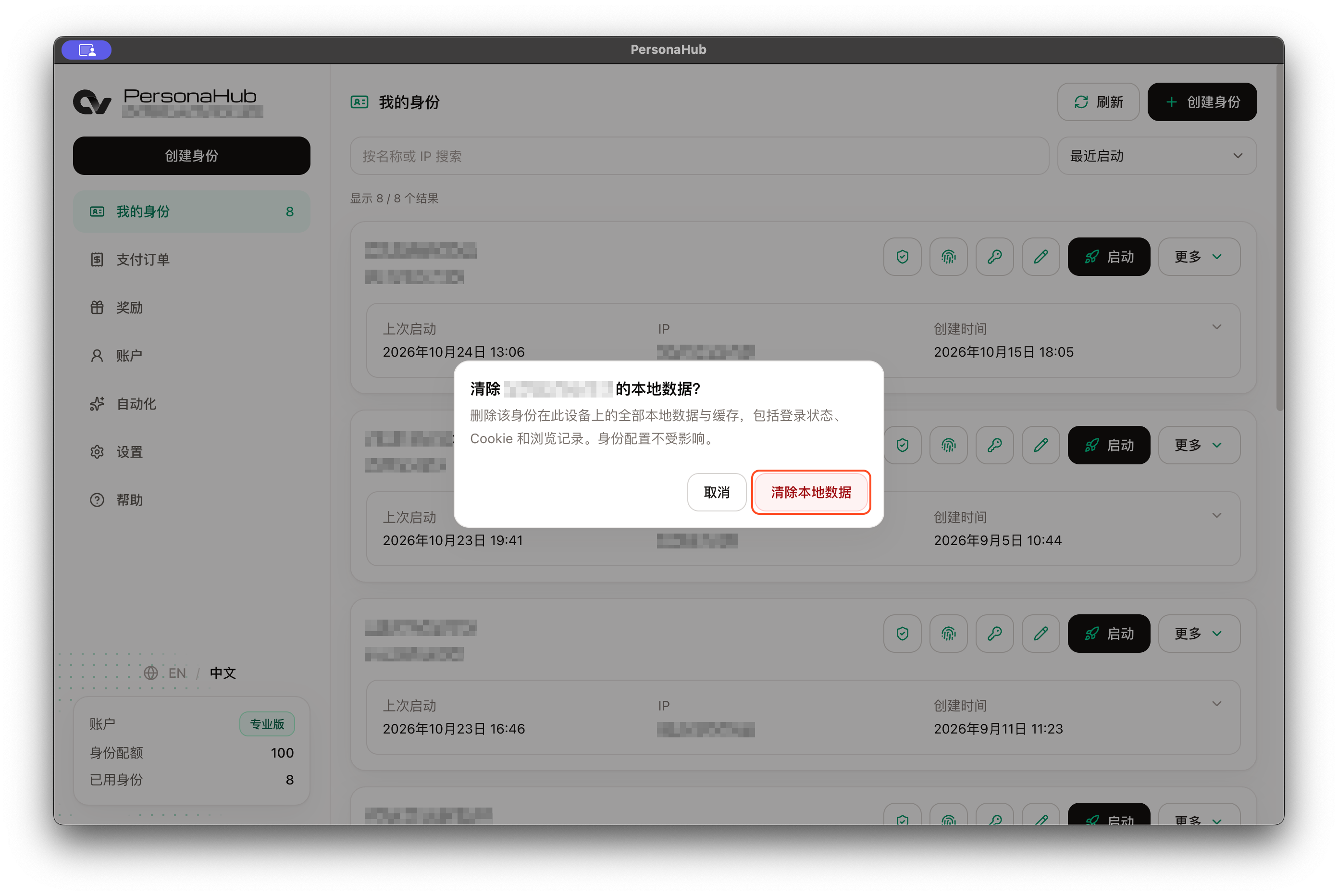
The confirmation dialog clearly displays the target profile's name. Important retention boundaries include:
- Clearing local data only resets the local browser environment on this device. It does not delete website usernames, passwords, TOTP authenticators, or passkeys saved in your account.
- Downloaded files outside the profile data and cache directories are retained.
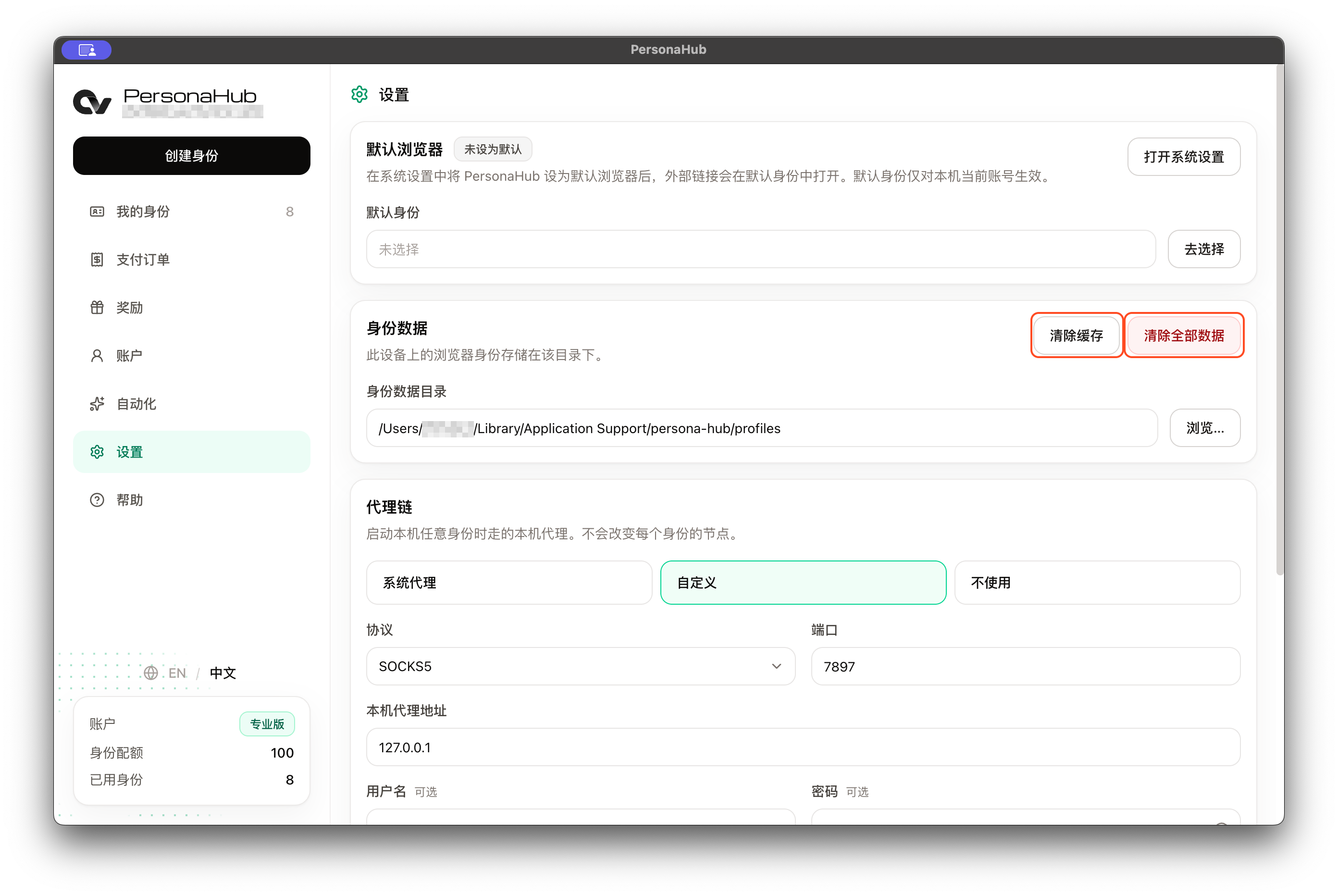
Global cleanup and data storage directory
Navigate to Settings → Profile data in the desktop client to manage profile data storage globally across this machine:
- Clear cache / Clear all data: These actions apply to all profiles in the current data directory, including local data left by other accounts. Their browser processes must be stopped first.
- Change data directory: Selecting a new storage directory does not migrate existing profile data or delete the old directory. Once updated, subsequent profile browser launches will initialize and store data in the new folder.