
Install Chrovia Studio on macOS
Download and install Chrovia Studio on Apple Silicon Macs, complete the DMG setup, initialize the browser engine, and manage in-app updates for SDK Gallery demos.
System requirements and installer
Chrovia Studio is designed for Apple Silicon Macs (M-series chips) running macOS 12 (Monterey) or later. Intel-based Macs are not supported. Visit the official download page to get the latest .dmg installer.
Installation steps
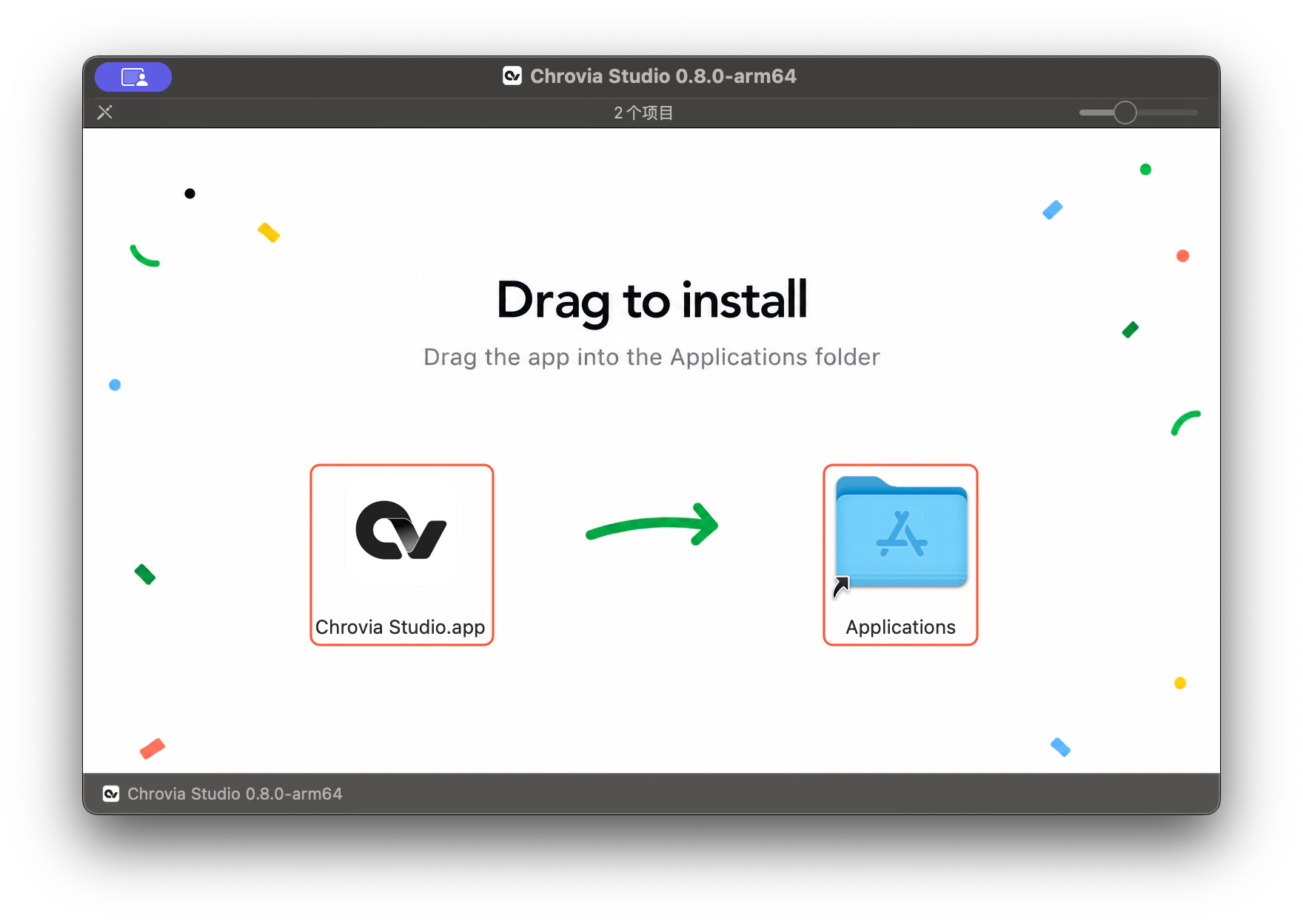
- Double-click the downloaded
.dmgdisk image to mount it. - In the installer window, drag the Chrovia Studio.app icon into the Applications folder shortcut.
- Once copying finishes, you can safely eject the mounted DMG image in Finder.
First launch and security prompt
Open your Applications folder and double-click Chrovia Studio. When macOS presents the standard security dialog for downloaded applications, click Open to proceed.
The desktop client prepares the built-in browser engine on startup. After signing in and waiting for the engine to become ready, you can launch and explore SDK Gallery capability demos.
In-app updates
The Chrovia Studio desktop client includes built-in version checking and automatic background downloads:
- Open the Help page to view your current client version, browser engine build, and update status.
- Click Check for updates to manually trigger an update check.
- When a new release is available, it downloads automatically in the background. Once ready, click Restart to update to apply the update and relaunch the client. If you choose not to restart immediately, downloaded updates will automatically install the next time you quit the app.

You can also visit the download page at any time to download the latest full installer package.