
Set PersonaHub as default browser and configure default profile
Configure PersonaHub as your system default web browser, route external HTTP and HTTPS links to a designated profile, and understand system settings and launch argument limits.
Default profile
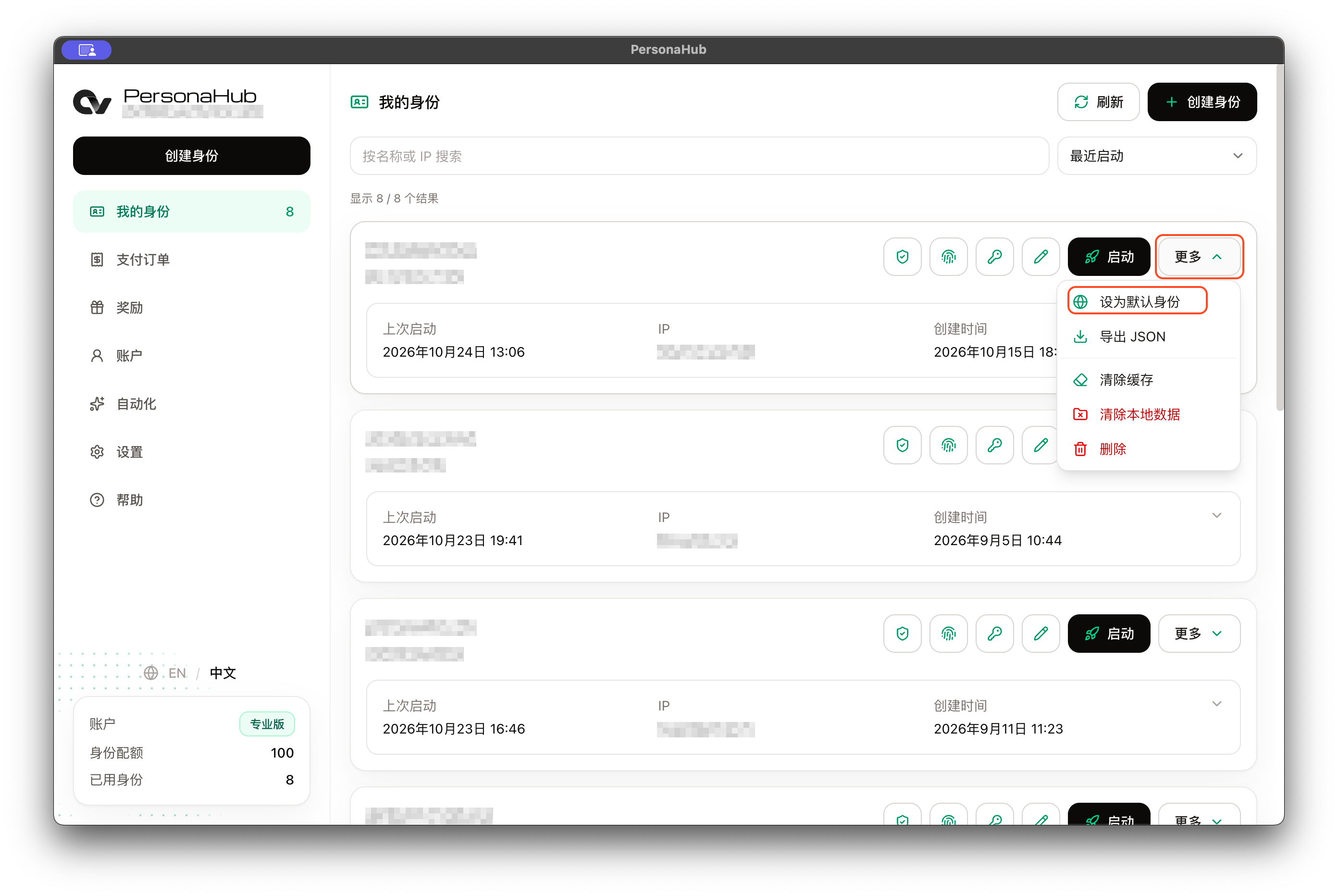
In the PersonaHub desktop app, navigate to My profiles, open the More menu next to any profile, and select Set as default profile. To remove the assignment, click Clear default profile.
The default profile selection is stored locally and applies only to the currently signed-in account on this computer.
System default browser
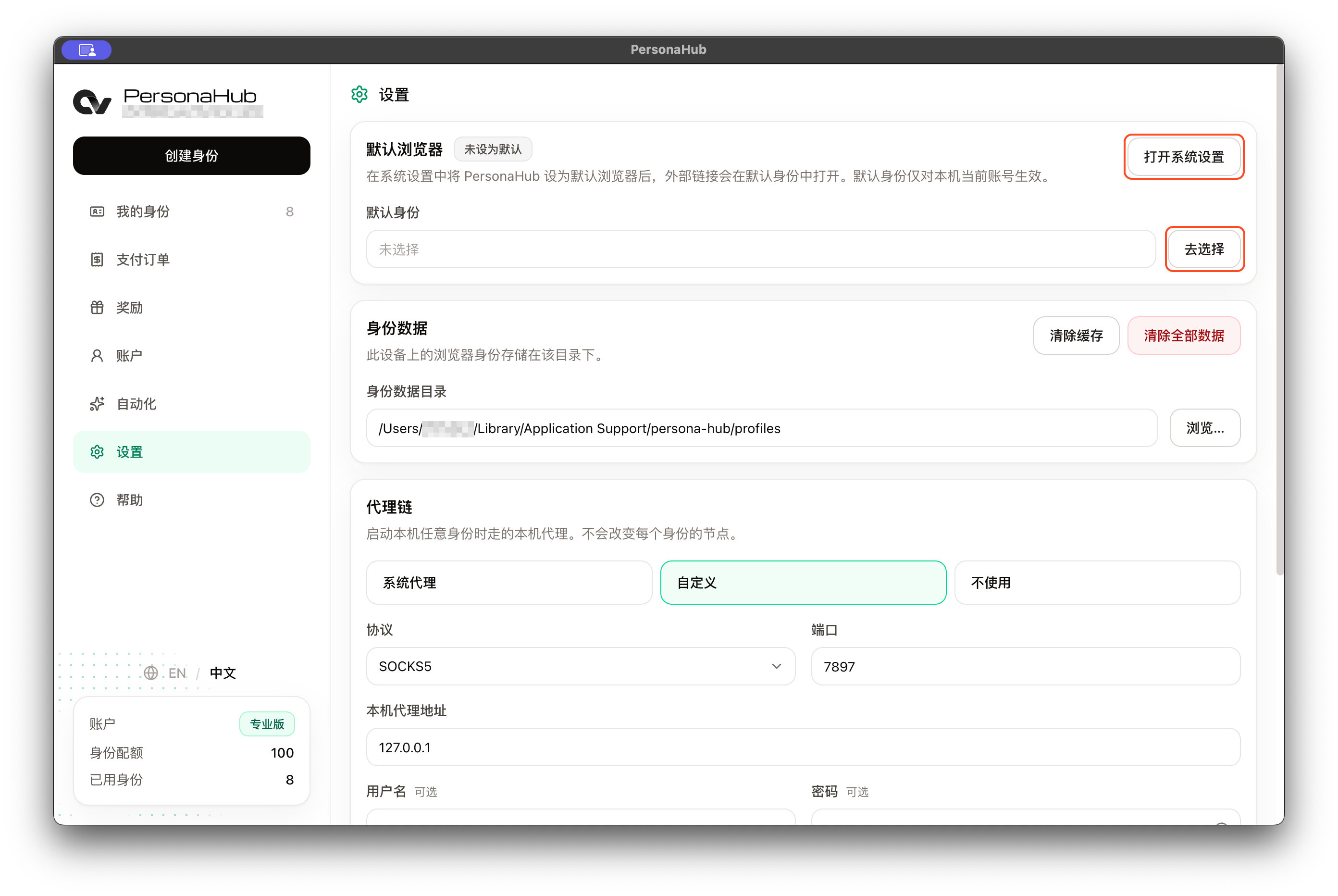
Go to Settings → Default browser in the desktop client to view your current system default browser status and the selected default profile. Click Open system settings to jump directly to your operating system's default application settings:
| Operating system | Setting path |
|---|---|
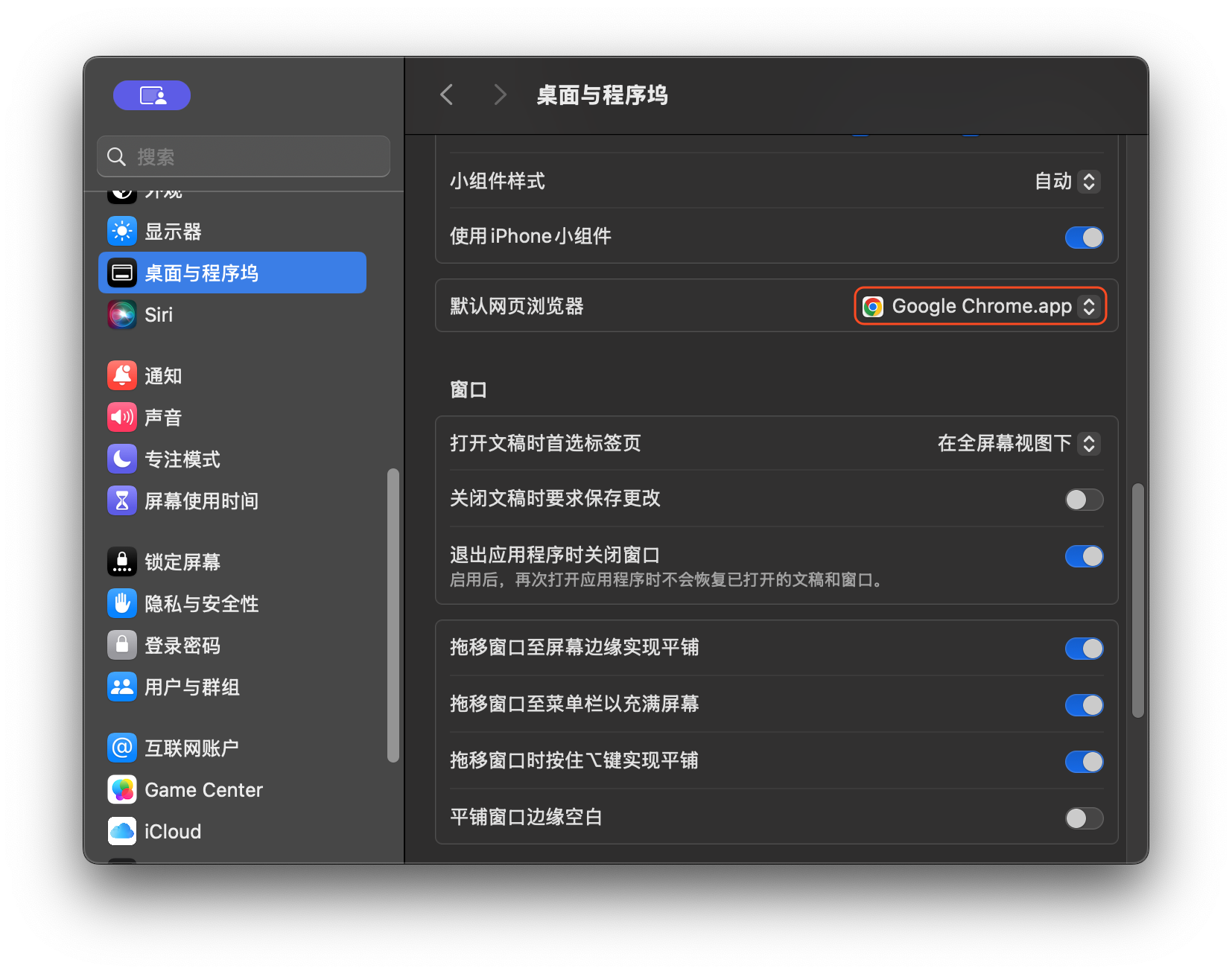
| macOS 13 or later | System Settings → Desktop & Dock → Default web browser → choose PersonaHub |
| macOS 12 (Monterey) | System Preferences → General → Default web browser → choose PersonaHub |
| Windows 10 / 11 | Settings → Apps → Default apps → choose PersonaHub, ensuring both HTTP and HTTPS associations point to the app |
External link handling and limitations
When PersonaHub is set as your system default browser and a default profile is configured, clicking HTTP or HTTPS links in external applications (such as email clients, chat tools, or terminals) will automatically open them inside that profile's dedicated browser window. This behavior requires the desktop client to be installed and signed in.
Keep the following requirements and edge cases in mind:
- Missing or inaccessible profile: If no default profile has been selected, or if the chosen profile has been deleted or is inaccessible to the current account, PersonaHub displays an error prompt. It will not arbitrarily select another profile as a fallback.
- Clearing default profile: Clicking Clear default profile only removes the profile routing; it does not change or reset the operating system's default browser setting.
- Account switching: If you switch accounts in PersonaHub, links originating from external applications must be clicked again after signing in to the target account.
- Incompatible launch arguments: Launch arguments such as
--headless,--no-startup-window,--same-tab,--app, and--app-idcause the client to reject the external-link launch and display an error.