
Nodes and proxy chains
How profile exit nodes and local upstream proxy chains work together, with configuration and troubleshooting steps.
PersonaHub provides a dual-layer proxy architecture: each profile can have its own dedicated exit node, while the desktop client can also configure a local upstream proxy chain (first hop). You can use either layer independently or combine them into a chained connection.
Architecture and connection sequence
- Profile exit node: Configured in each profile's "Network settings", determining the final exit IP seen by destination websites.
- Local proxy chain: Configured in the client under "Settings → Proxy chain", serving as a local upstream proxy (first hop) for all profiles launched on this computer.
When both layers are configured and Use proxy chain is enabled on the profile, traffic flows as follows:
Profile browser → Local proxy chain (first hop) → Profile node (exit) → Destination websiteThis setup lets you use a single local proxy tool (such as Clash, v2rayN, or a local SOCKS5 relay) as an upstream tunnel, while assigning unique commercial residential proxy nodes to individual profiles. Websites observe the IP of the final exit node. WebRTC UDP behavior is controlled separately under Fingerprint and WebRTC settings.
Configuring profile network settings
Configure your node when creating a profile or navigate to My profiles → Edit → Network settings:
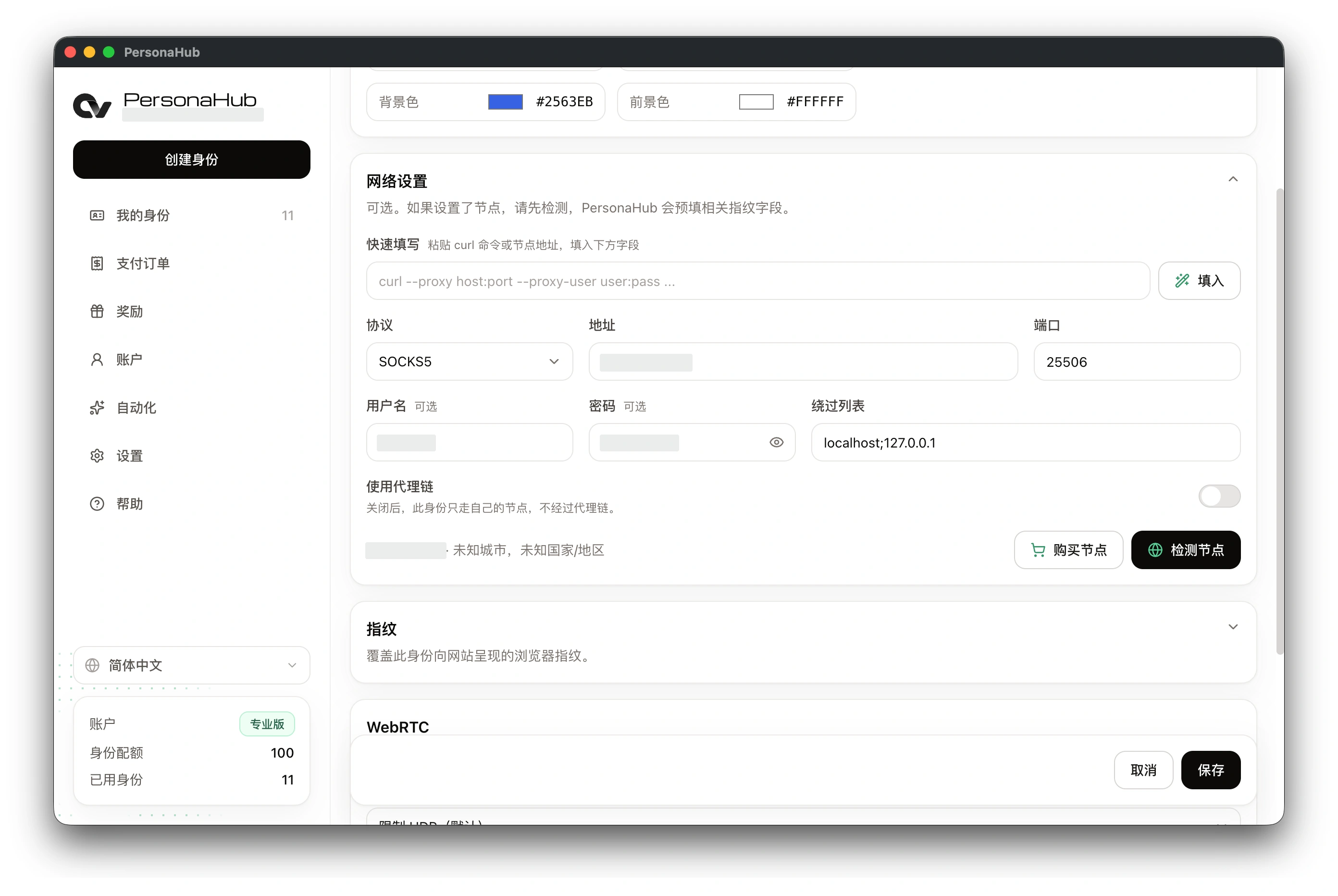
| Field | Description |
|---|---|
| Protocol | Select HTTP, HTTPS, or SOCKS5 as provided by your proxy service |
| Address & Port | The proxy server hostname/IP and the service port |
| Username & Password | Proxy credentials; leave empty if using IP allowlisting |
| Paste details | Paste a complete curl command or proxy URL, then click "Fill in" to auto-populate the fields above |
| Bypass list | Semicolon-separated rules for destinations that bypass the proxy; defaults to localhost;127.0.0.1 |
| Use proxy chain | Controls whether this profile routes through the local upstream proxy chain |
Testing node connectivity
After filling in node details, click Check node. Upon successful verification, the panel displays the detected exit IP, country, and city, and automatically syncs the detected timezone to your profile fingerprint settings.
Important notes:
- The node test does not alter your browser's preferred language. Adjust language settings manually under Fingerprint if needed.
- The "Address" in your configuration is often an entry gateway, while the test result displays the exit IP; having different values is expected.
- If node details are provided, testing must succeed before you can save or create the profile. Modifying connection fields requires re-testing.
- Without a node, a profile connects directly, without the OS proxy, when "Use proxy chain" is off or the proxy chain mode is "None"; in "System proxy" or "Custom" mode, its traffic goes only through the upstream proxy.
Local proxy chain modes
In the desktop client, open Settings → Proxy chain. These settings are stored locally on your machine and apply to all profiles launched from it:
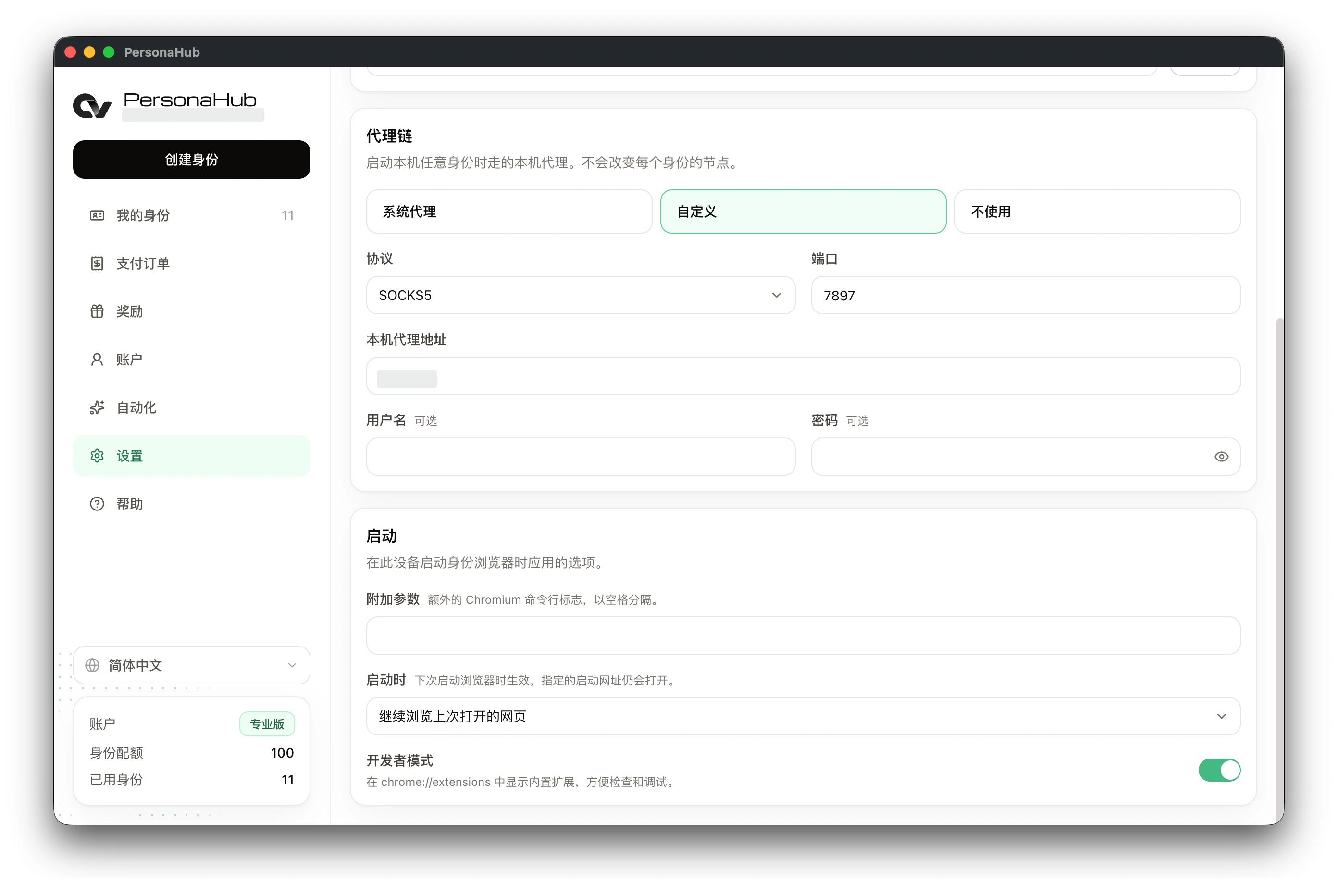
| Mode | Behavior and use case |
|---|---|
| System proxy | Reads operating system proxy settings and uses them as an upstream first hop; the initial client default |
| Custom | Manually specifies an upstream proxy protocol, IP address, port, and optional credentials |
| None | Disables the local proxy chain; all profiles connect directly to their assigned nodes |
Custom mode parameters
In "Custom" mode, enter the listening address of your upstream proxy service:
- If the upstream proxy runs on the same computer, enter
127.0.0.1. - Set the port and protocol to match your local proxy tool.
- If a profile has no assigned node but has proxy chaining enabled, it will use this upstream proxy as its sole connection.
- If a profile has "Use proxy chain" turned off, it bypasses the local upstream proxy entirely.
Note: Changes to proxy chain settings apply to subsequent node tests and browser launches. Running browser windows must be fully closed and reopened.
Troubleshooting connection and test failures
| Issue | Verification steps |
|---|---|
| Node check fails | Verify protocol, host, port, and credentials; ensure your proxy plan is active with sufficient traffic; check provider allowlist settings |
| Check fails with proxy chain on | Ensure your local proxy tool is running; verify listening port and protocol; confirm the local proxy has working internet access |
| Local proxy not taking effect | Ensure the profile's "Use proxy chain" switch is turned on; verify the mode is not set to "None" |
| Website shows node IP but WebRTC reveals direct IP | WebRTC UDP traffic can bypass the proxy; see "Restrict UDP (default)" under Fingerprint and WebRTC settings |
For provider-specific setup guides, see Thordata proxy integration and IPRoyal proxy integration.