
How to connect through MCP
Enable Persona Hub's local service and connect it to Codex or another AI client to list, create, and launch browser profiles.
MCP (Model Context Protocol) lets an AI client use Persona Hub tools to list, create, update, and launch profiles. Each profile has its own browser configuration and a separately opened Chromium browser, rather than a user profile you switch to inside ordinary Chrome.
This guide uses Persona Hub and Codex on the same computer. Other MCP clients that support Streamable HTTP and custom request headers can also connect. Their configuration screens and formats may differ.
1. Enable the local service
Open the Persona Hub desktop app, sign in, and select Automation in the sidebar.
Under Local service, keep the default port 43110 and turn on Enable service. Leave Allow network access off if the AI client runs on the same computer.
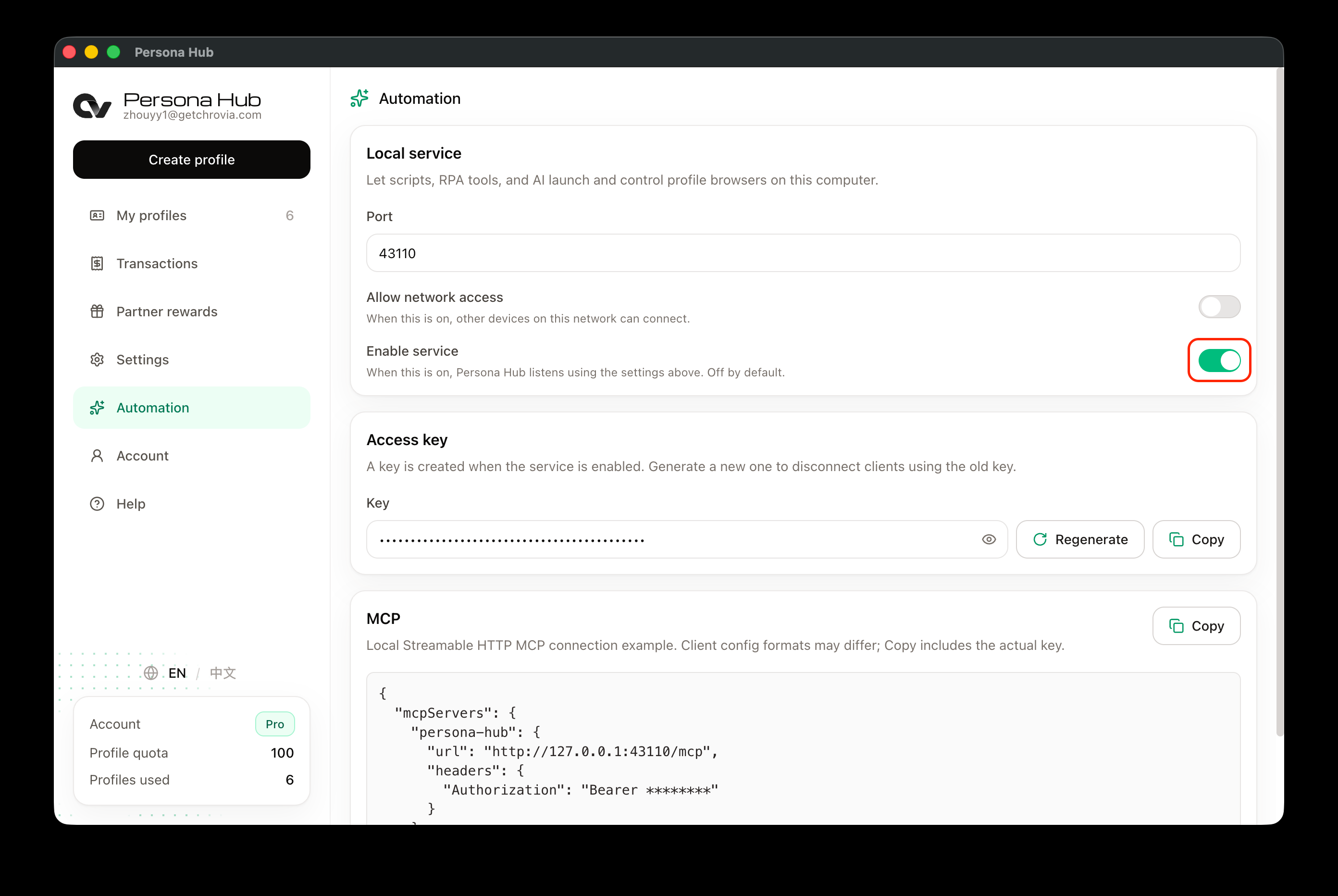
Keep Persona Hub running and signed in while using MCP. The desktop app provides the service; opening the Console website alone does not start a local MCP server.
2. Copy the MCP configuration
Scroll to the MCP card and click Copy in its upper-right corner.
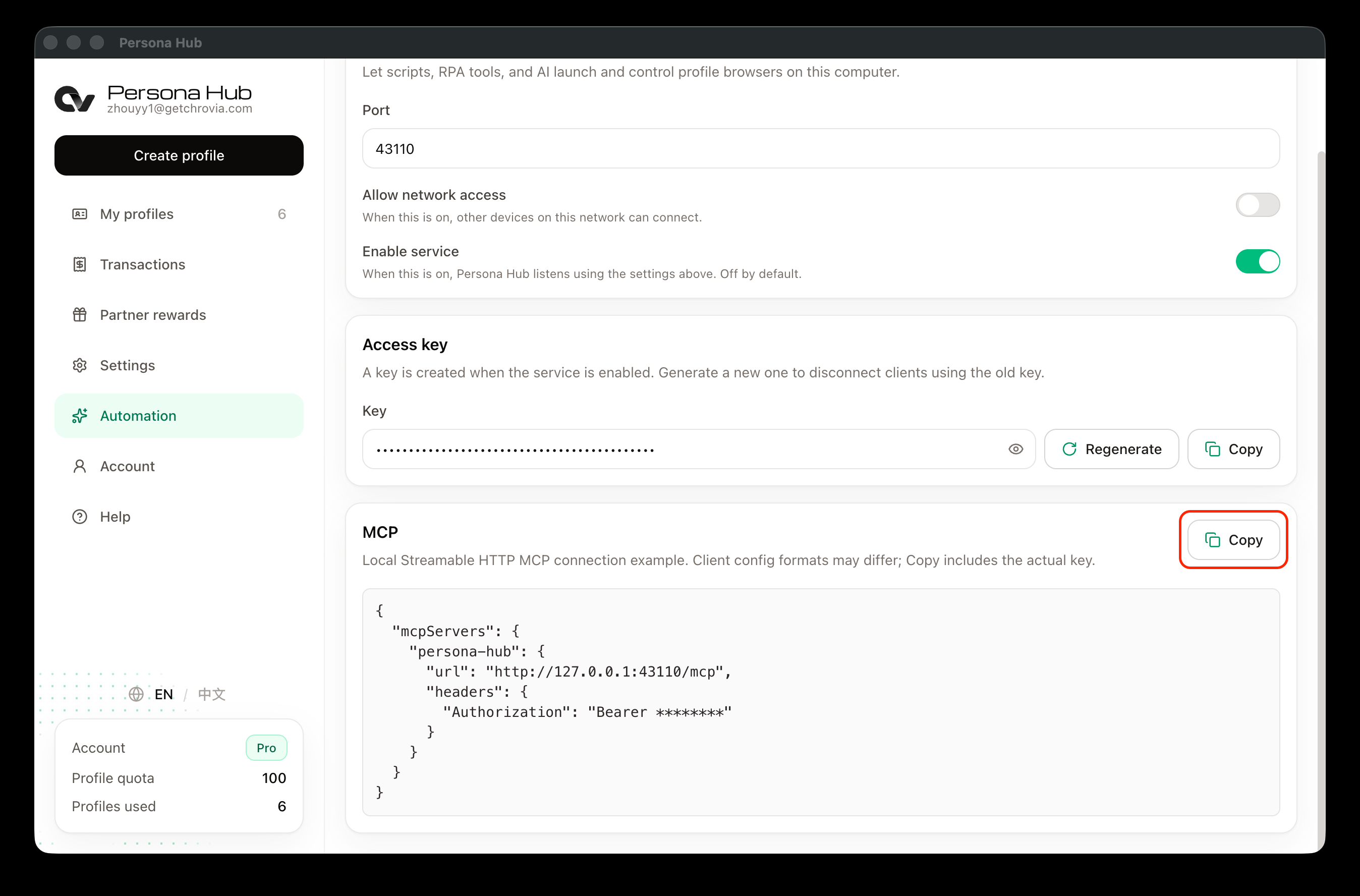
The preview masks the key as ********, but Copy includes the actual key and current port. The configuration has this structure; YOUR_ACCESS_KEY is only a placeholder:
{
  "mcpServers": {
    "persona-hub": {
      "url": "http://127.0.0.1:43110/mcp",
      "headers": {
        "Authorization": "Bearer YOUR_ACCESS_KEY"
      }
    }
  }
}
If your client accepts this JSON format, add the persona-hub entry to its existing mcpServers object without replacing other servers. For clients with a setup form, enter the address and authentication details as described below.
3. Add the server in Codex
Open MCP configuration in Codex settings and choose the option to connect to a custom MCP server. The version shown in the screenshot has this under Plugins; the location may vary between versions.
- Name: Enter
persona-hub. - Type: Select Streamable HTTP, not STDIO.
- URL: Enter
http://127.0.0.1:43110/mcp. If you changed Persona Hub's port, use the address from the copied configuration. - Headers: Add a row with
Authorizationas the key andBearer YOUR_ACCESS_KEYas the value, replacing the placeholder with your actual key. Keep a space betweenBearerand the key. - Leave Bearer token environment variable and Headers from environment variables empty when using the header method above.
Copy the key separately from Persona Hub's Access key card, or use the complete Authorization value from the configuration you copied earlier.
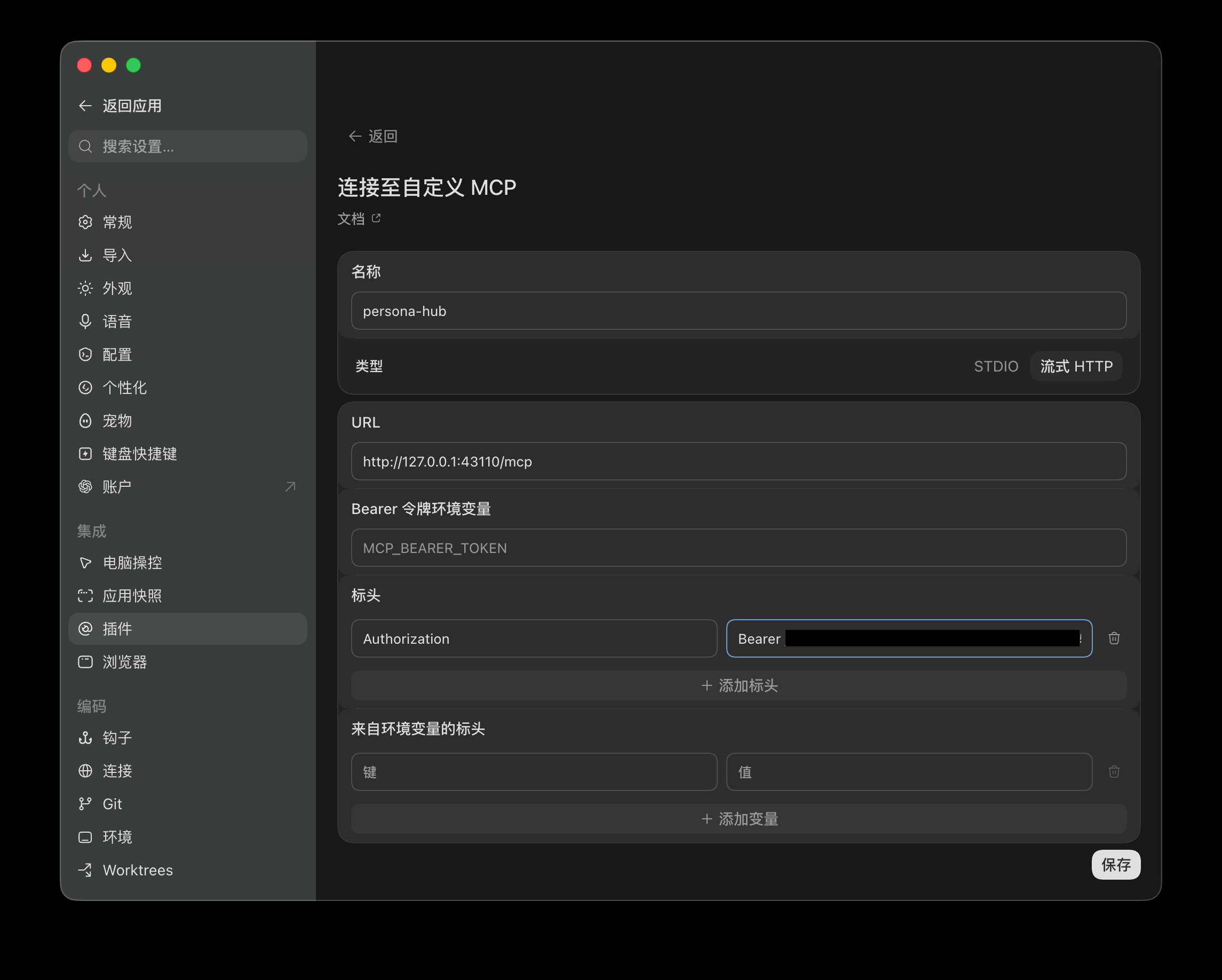
The key is hidden in the screenshot; enter your own actual key. The gray MCP_BEARER_TOKEN text in Bearer token environment variable is a placeholder. Leave that field empty; this guide passes the key directly through Headers.
Click Save, then reconnect the MCP server in your client. Restart the client if its tool list does not update. For Codex configuration fields, see the official MCP documentation.
4. Check the connection
Return to the conversation in Codex and send the request shown in the screenshot:
List all profiles in Persona Hub.Codex returns the profile count and names. In the screenshot, it responds with Persona Hub has 6 profiles: and lists six profiles, including David Morrison and Patricia Brooks.
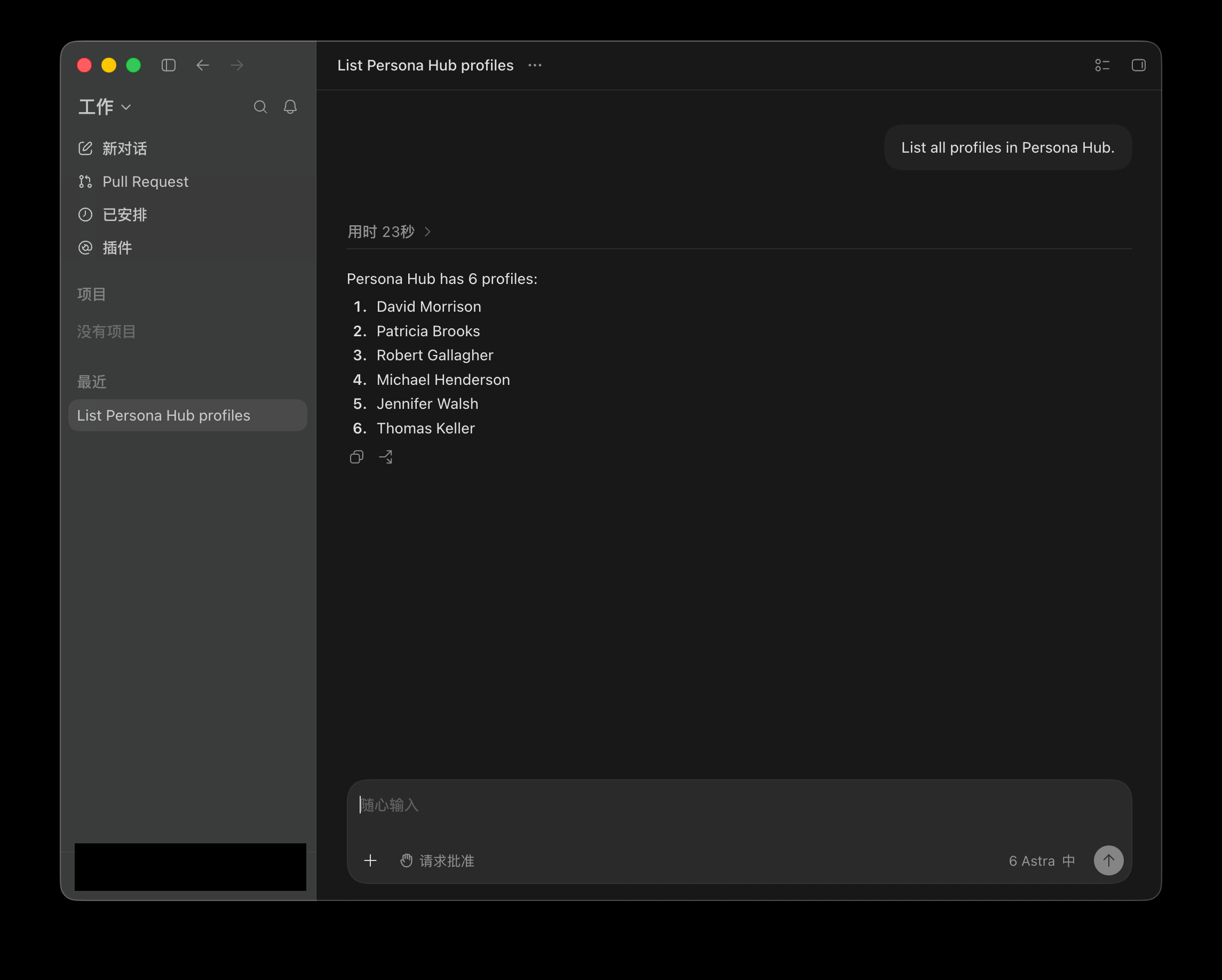
Check that the returned list matches your profiles in Persona Hub to confirm the connection works. Names and counts depend on your account; an empty list is also a valid result if you have not created any profiles yet.
What MCP can do
- Check the browser engine status and available fingerprint settings.
- List, read, create, update, and delete profiles.
- Launch a profile browser or request closure of a browser tracked by
launchProfile. - Prepare a profile and return
executableandargsthroughcommandProfilefor an external program to launch. This tool does not start the browser itself.
These MCP tools manage profiles and browser launches. They do not directly provide tools for clicking, reading pages, or taking screenshots. For page interaction, combine them with CDP-compatible tools; see How to enable CDP when launching a browser. Port 43110 belongs to the Persona Hub service and is separate from the browser debugging port 9222 used in the CDP guide.
Connection issues
- Connection refused or timed out: Check that Persona Hub is running, Enable service is on, and the port matches. If another program is using the port, choose an unused one and copy the updated configuration.
- Authentication failed or 401 response: Use the actual key, not
********, and include theBearerprefix in theAuthorizationvalue. Do not paste the key into Bearer token environment variable. - Connection stopped working after regenerating the key: The old key is no longer valid. Copy the MCP configuration again and update your AI client.
- Opening `/mcp` in a browser returns an error: This endpoint accepts MCP protocol requests; it is not a web page. Check the tool list or call
listProfilesto verify the connection. - Tool descriptions stay in the previous language: After switching Persona Hub's interface language, reconnect MCP so the client fetches the descriptions again. Tool names always remain in English.
- AI client runs on another computer or in the cloud:
127.0.0.1refers to the computer running the AI client. For a local-network connection, enable Allow network access and replace the host with the LAN IP of the computer running Persona Hub, keeping the port and/mcp. A cloud client cannot connect through this local address.