
How to launch a profile browser
Find an existing profile in Persona Hub and click Launch to open its own browser window.
Launch profiles from the Persona Hub desktop app. If you haven't created one yet, see How to create a profile in Persona Hub.
1. Find the profile
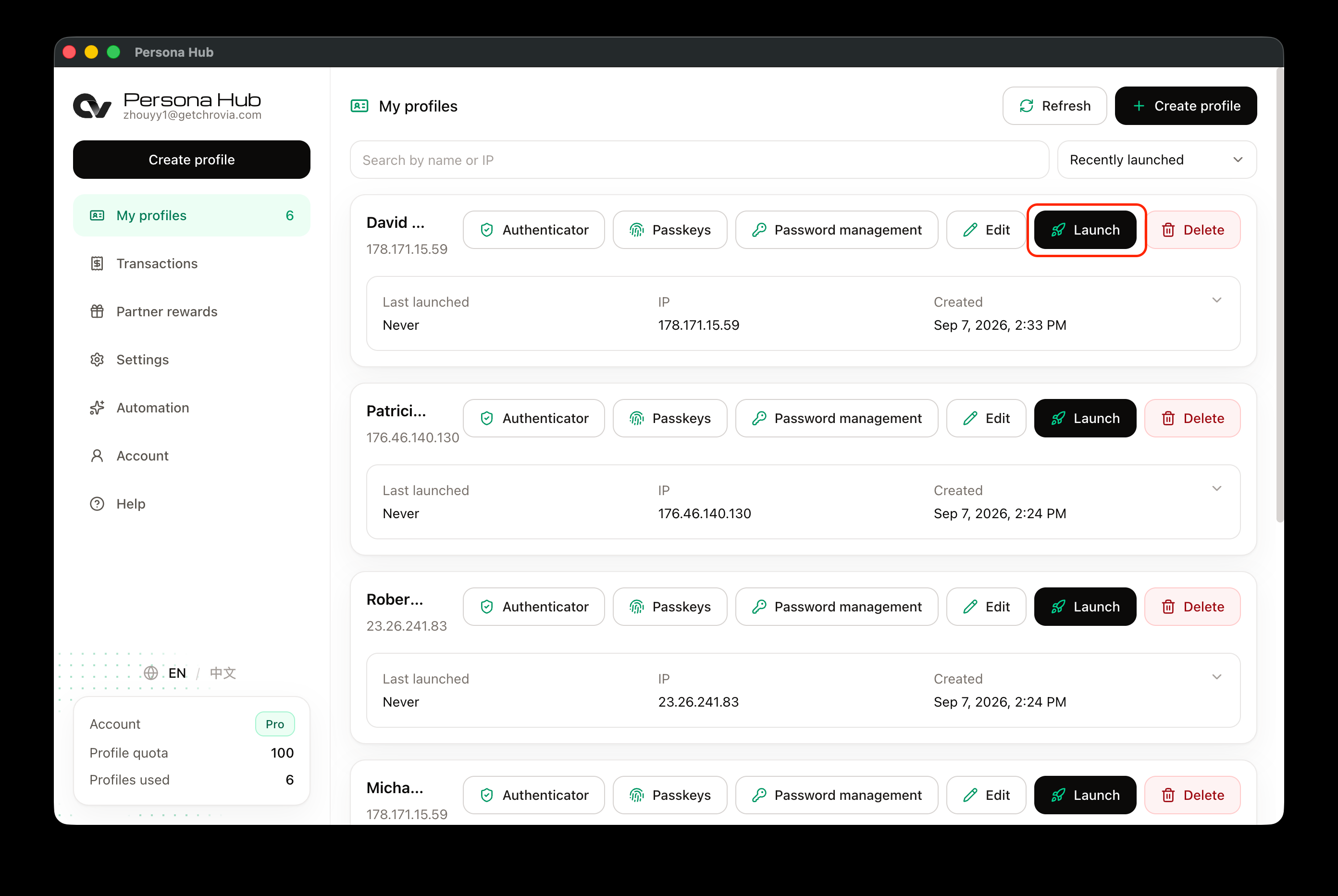
Open Persona Hub, sign in, and go to My profiles. Find the profile you want to use. If the list is long, use the search box at the top to search by name or IP address.
This example continues with David Morrison from the creation guide.
2. Click Launch
Click Launch on the right of the profile and wait for the browser window to open.
The browser must be ready before you can launch a profile. If Persona Hub is still downloading or extracting it, wait for that to finish.
3. Browse in the profile window
The new window is this profile's own browser, separate from the Persona Hub management window and your everyday browser.
The blue DM badge at the top right is the Appearance label set when the profile was created. It helps identify which profile a window belongs to.
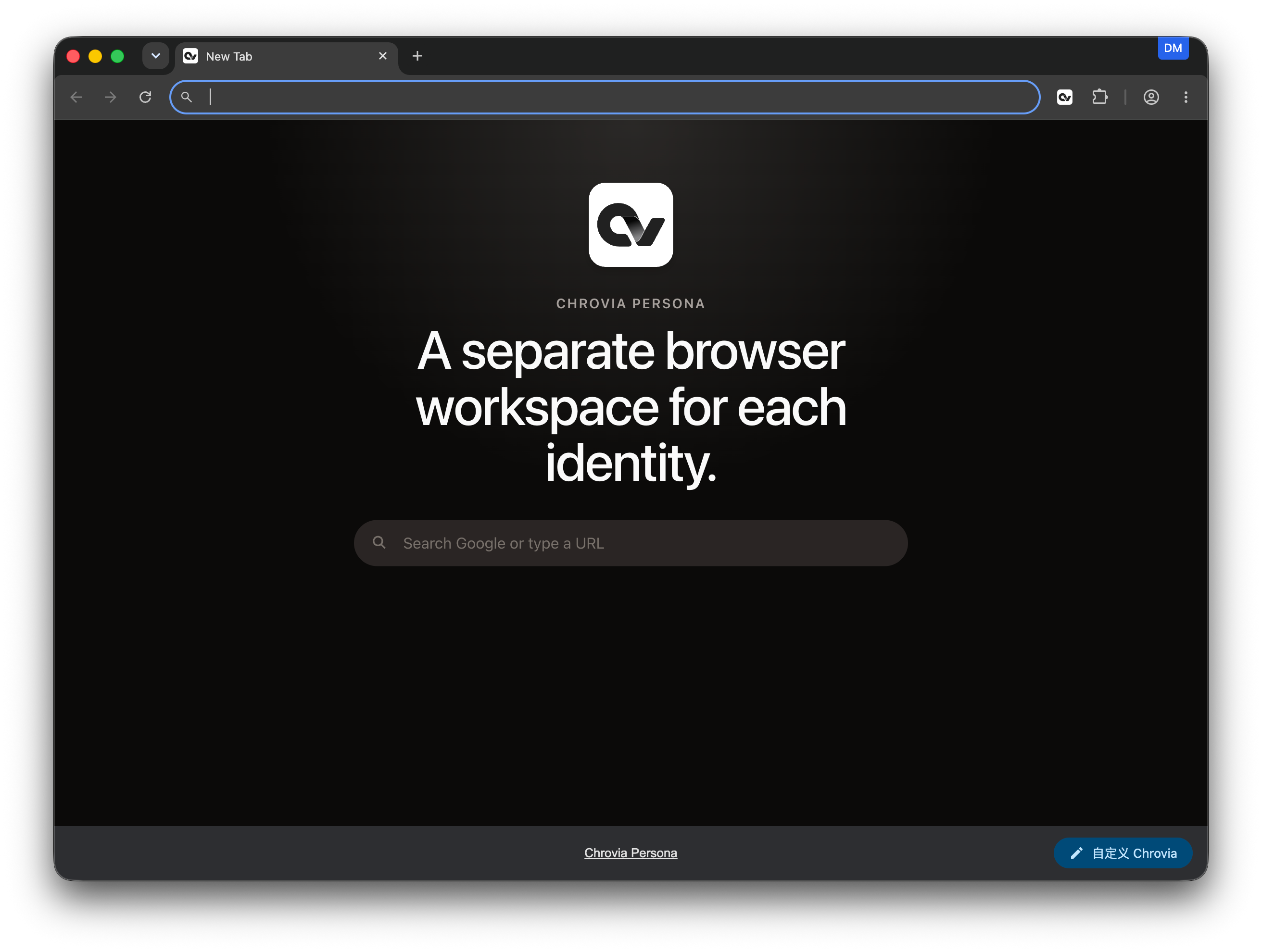
Enter a URL in the address bar to visit a website and sign in. This profile's browser data is kept separate from other profiles. If a node is configured, the browser uses this profile's node settings.
Close the browser window when you're done. Next time, return to My profiles and click Launch on the same profile. There is no need to create another one.
To connect debugging or automation tools to this browser, see How to enable CDP when launching a browser.