
How to use passkeys
Register a passkey with Persona Hub Passkeys in a profile browser, then view or delete the saved credential in Persona Hub.
A passkey uses a key pair to authenticate with a website, without copying a rotating code as you would with TOTP. A website may use it for passwordless sign-in or as a second step after entering a password, depending on its settings.
Persona Hub Pro provides software passkeys saved per profile. This guide uses Proton in the David Morrison profile. The screenshots show Security key registration for Proton's two-step verification, not a switch to passwordless sign-in. First, launch this profile's browser.
1. Start registration on the website
Sign in to the website, open its account security settings, and find the option to add a passkey or security key.
The screenshot shows Proton's Account and password page. Under Security key, open Register your security key, leave Allow platform keys selected, and click Continue.
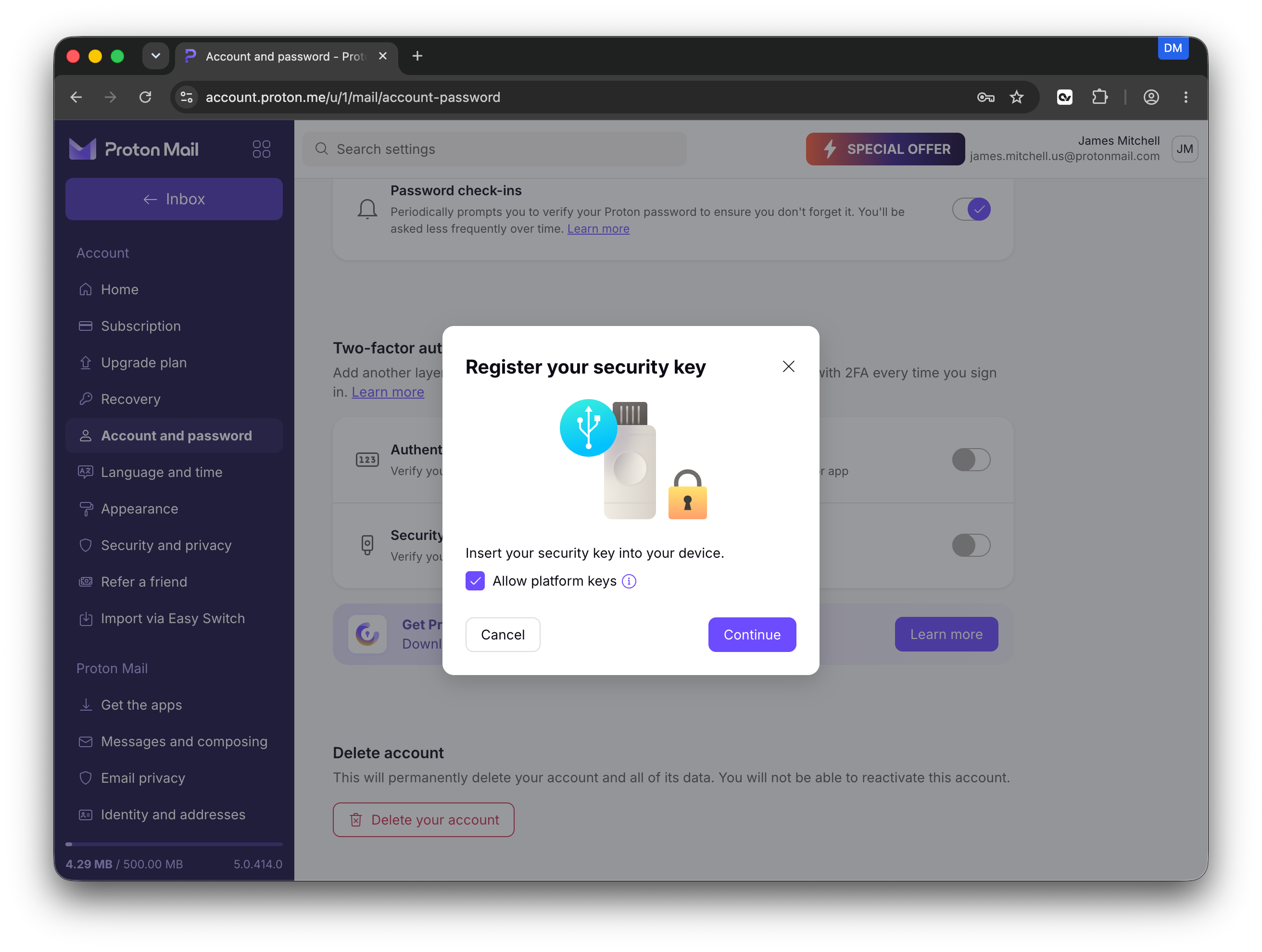
Although the website illustrates a USB security key, the next step uses Persona Hub's software passkey provider. No physical security key needs to be inserted for this flow.
2. Select Persona Hub Passkeys
When the browser opens its passkey picker, select Persona Hub Passkeys and click Continue. Follow any remaining instructions from the website.
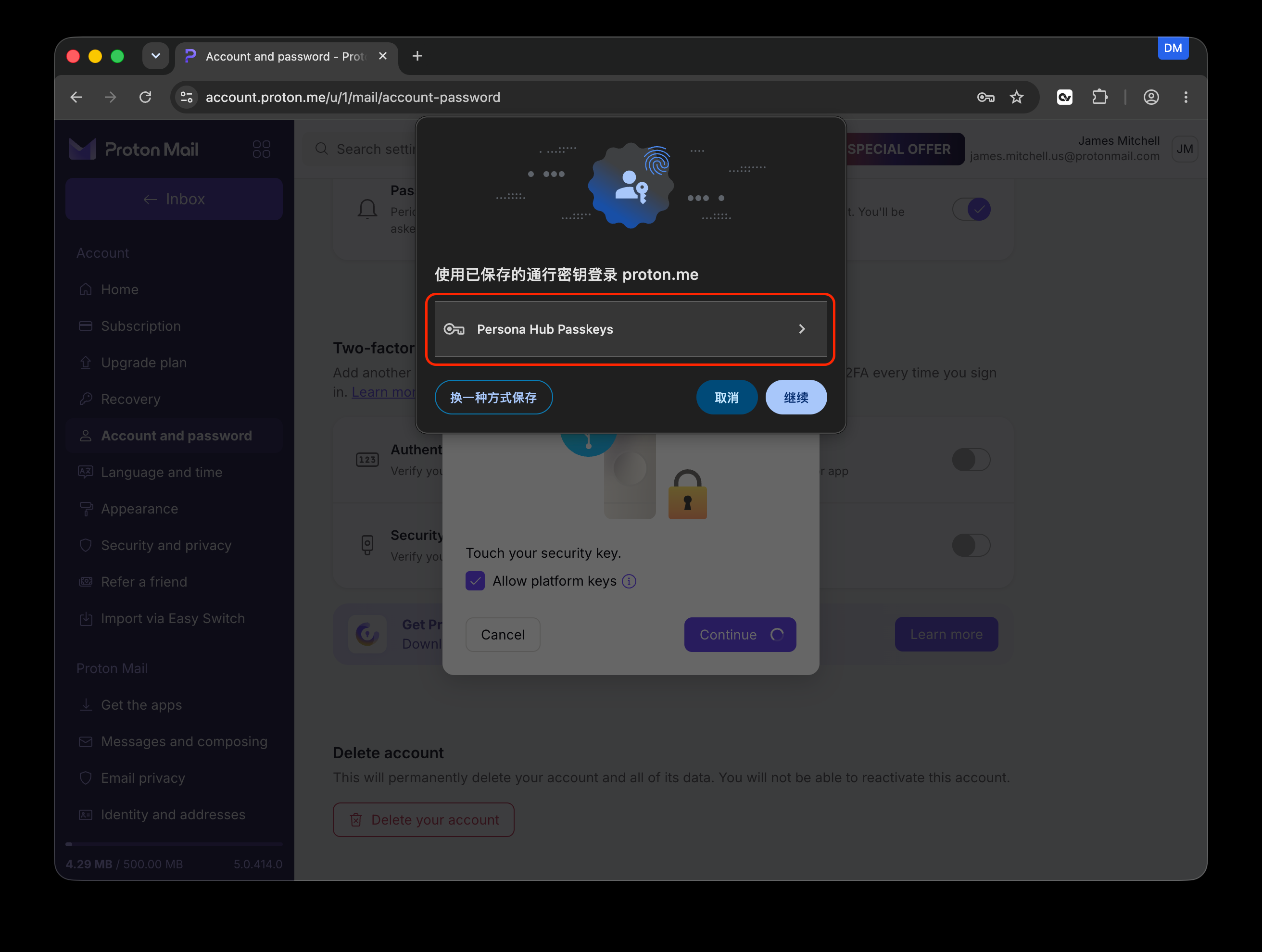
The provider you choose determines where the credential is saved. For this guide, select Persona Hub Passkeys, rather than a system provider or another device.
3. Confirm registration on the website
Wait for the website to show its result. In the screenshot, Proton displays Security key registered and confirms that the two-factor authentication key is ready to use. Click Done.
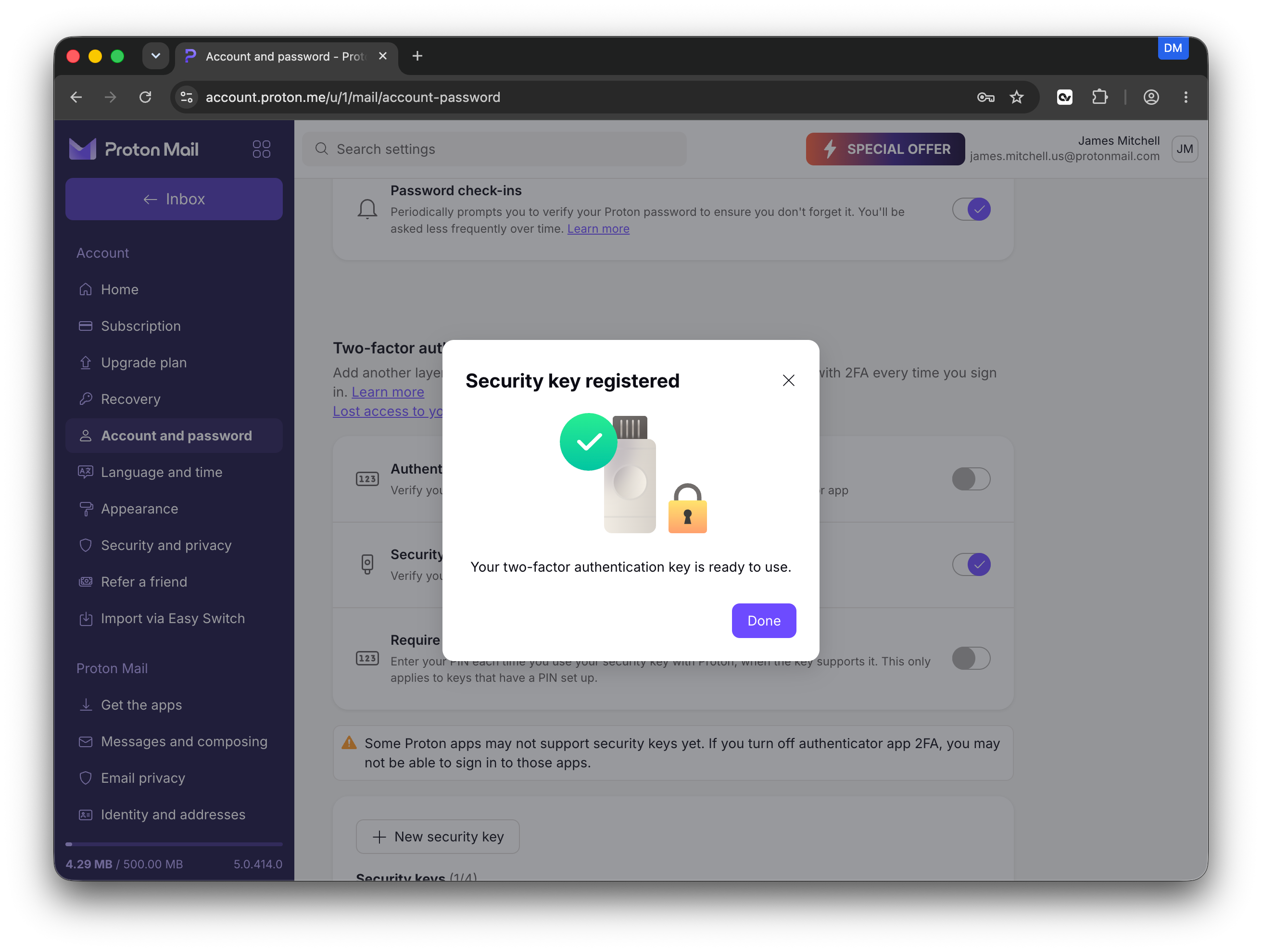
Opening the browser picker or choosing a provider does not by itself complete registration. Check for the website's success message.
4. View the passkey in Persona Hub
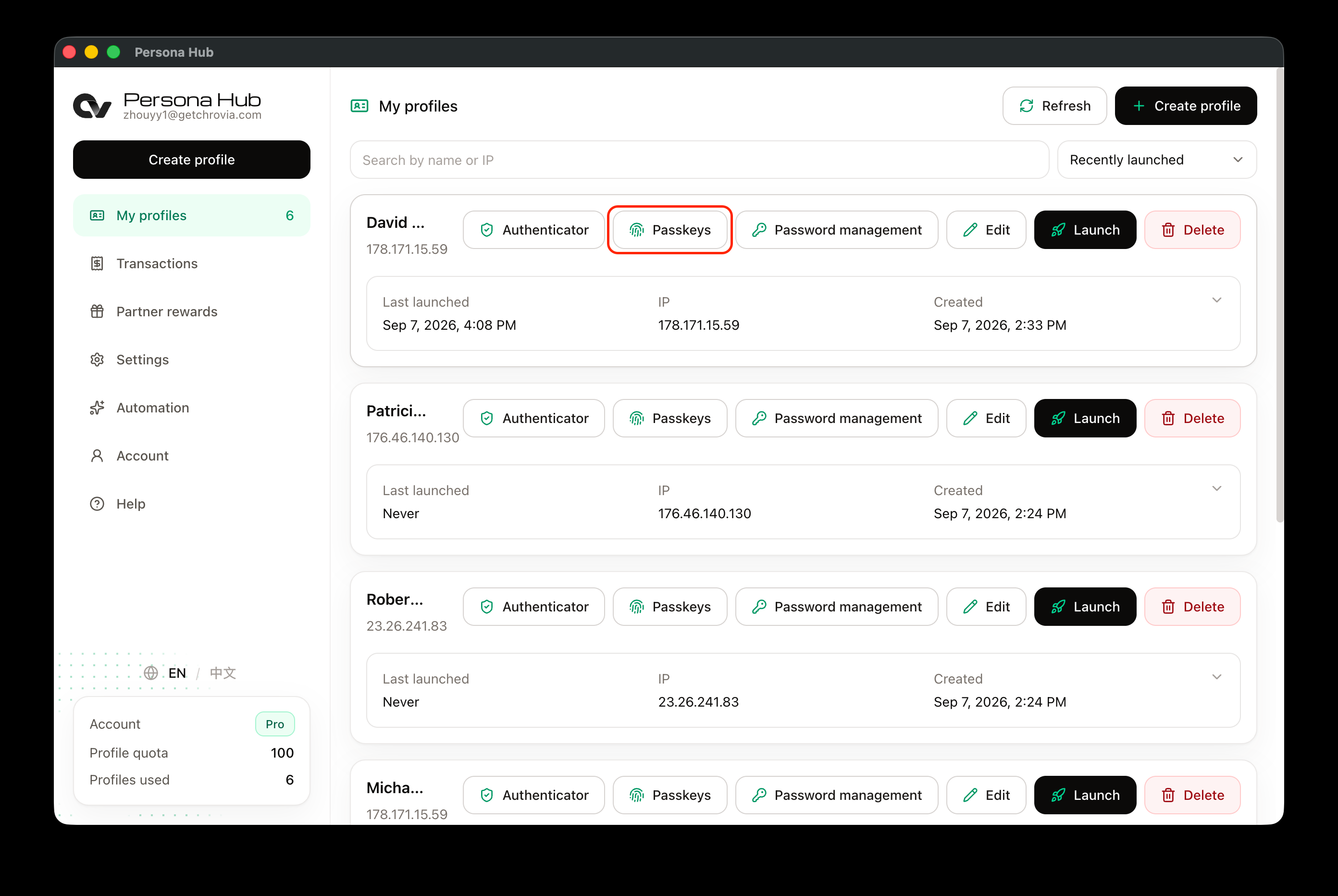
Return to My profiles, find the profile you used, and click Passkeys.
The page title identifies the profile. In the screenshot, Passkeys · David Morrison lists the Proton account with proton.me as the website. Click Refresh if the newly registered entry has not appeared.
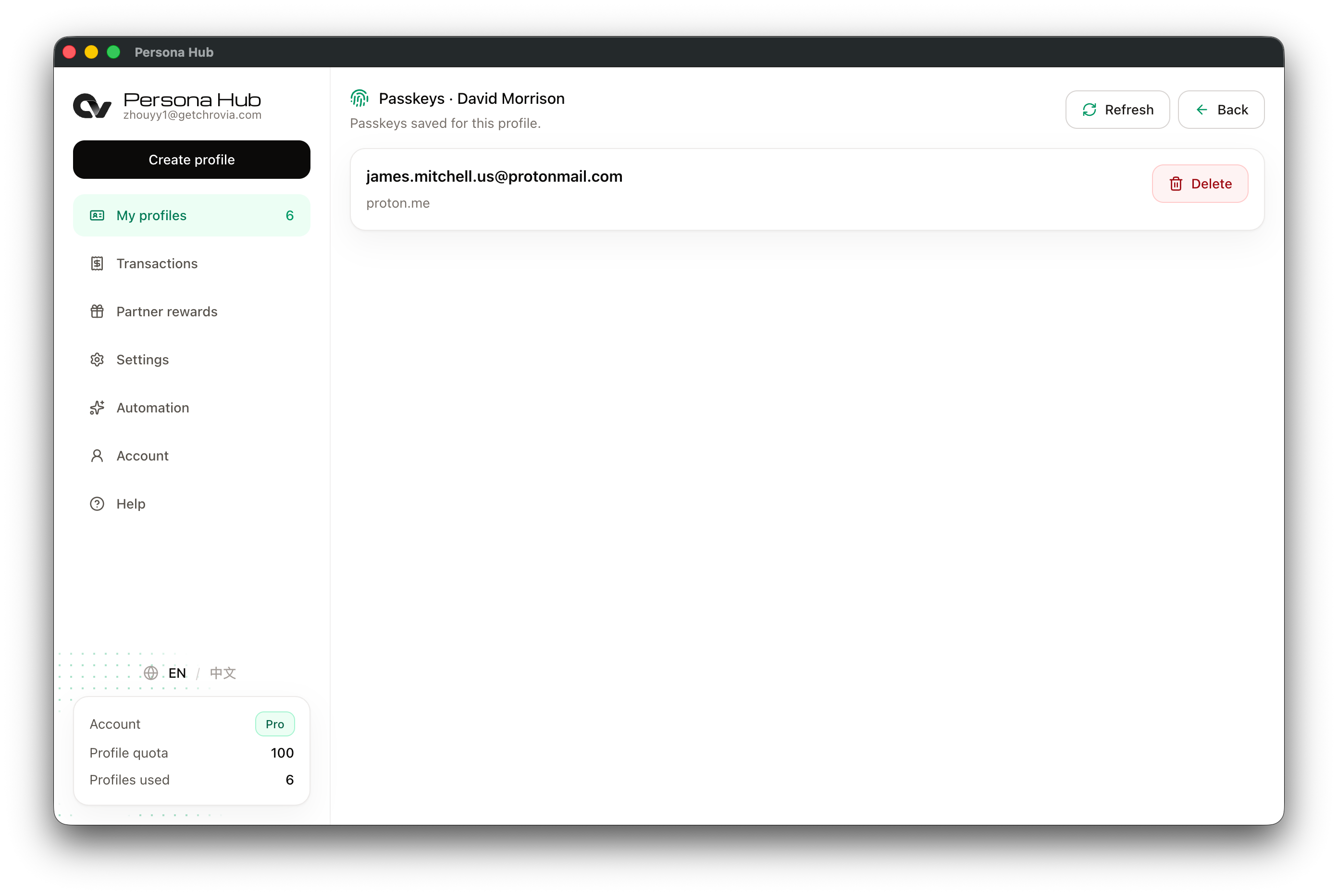
The management page lets you view and delete saved credentials. It has no manual add button; new passkeys must be registered through a website.
Use the passkey next time
Use the same profile browser. When the website requests passkey or security-key verification, choose Persona Hub Passkeys and follow the browser and website prompts. Credentials are bound to their website; a passkey for one website cannot authenticate you on another.
The Proton flow shown here is for two-step verification. If the website asks for a password first, that step is still required. For saving passwords, see How to manage website passwords. For rotating codes, see How to use TOTP authentication.
Deleting passkeys and troubleshooting
- Delete a passkey: Click Delete beside the record and confirm. This removes the credential saved in Persona Hub. It does not remove the registration from the website's security settings or delete the website account.
- Deleted credentials still appear in the browser: Close every browser window for that profile and launch it again from Persona Hub to load the latest credentials.
- Passkeys button is missing: Check that your current plan is Pro under Account.
- Persona Hub Passkeys is missing from the browser picker: Check that you are using a profile browser launched from Persona Hub. If your plan just changed, close the old browser and launch it again.
- New record is missing from the management page: Check that you selected the correct profile, chose Persona Hub Passkeys during registration, and received a success message from the website. Keep Persona Hub running and online, then refresh.