
How to enable CDP when launching a browser
Enable CDP through profile launch arguments in Persona Hub so debugging or automation tools can connect to a running profile browser.
CDP (Chrome DevTools Protocol) is Chromium's debugging protocol. With CDP enabled, compatible tools can connect to a profile browser to read pages, interact with them, or take screenshots.
Configure these settings in the Persona Hub desktop app. They apply only to the selected profile. If you haven't created one yet, see How to create a profile in Persona Hub.
1. Edit the profile
Go to My profiles, find the profile you want to use with CDP, and click Edit.
2. Add the launch arguments
Expand Startup & launch arguments and enter this line in Profile launch arguments:
--remote-debugging-port=9222 --remote-allow-origins=*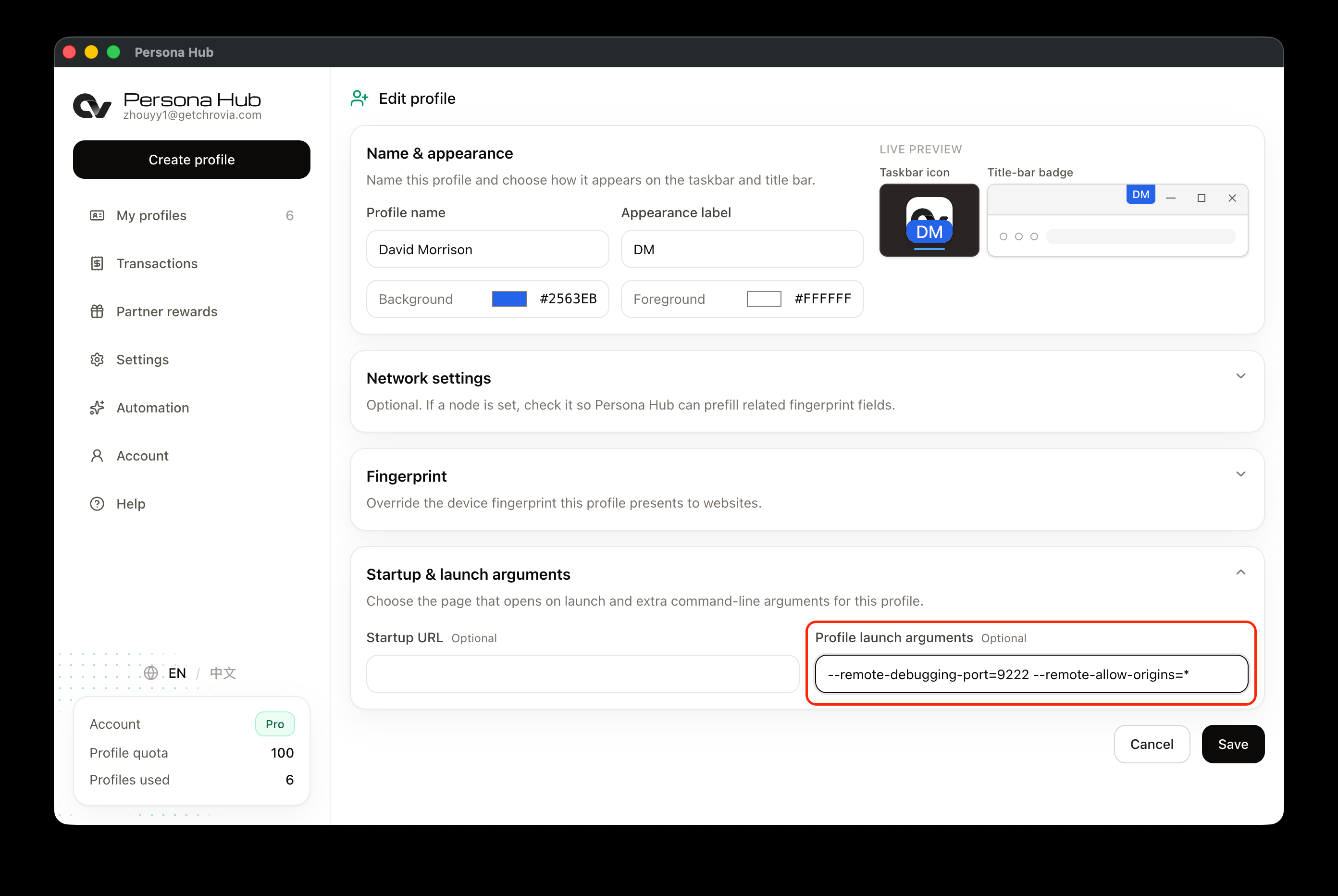
Separate the two arguments with a space. Use Profile launch arguments, not the Startup URL field on the left. If other arguments are already present, add a space and append this line. If either flag is already set, update its value instead of adding it again.
--remote-debugging-port=9222enables CDP on port9222.--remote-allow-origins=*allows debugging WebSocket connections from any Origin. It does not change the address the debugging port listens on.
3. Save and launch the browser
Click Save, return to My profiles, and click Launch for this profile.
If the profile browser is already open, close all of its windows and wait for it to exit before launching it again. Saving the arguments or refreshing a page does not enable CDP in a running browser. For the launch steps, see How to launch a profile browser.
4. Check that CDP is enabled
After the browser starts, open this address on the same computer running Persona Hub:
http://127.0.0.1:9222/json/versionA JSON response containing webSocketDebuggerUrl means the debugging endpoint is ready. Tools that require a WebSocket address can use the full value of that field. Tools that support CDP discovery over HTTP can connect to:
http://127.0.0.1:9222This connects to the profile browser you just launched, not the Persona Hub management window. 127.0.0.1 refers to the current computer. If your tool runs on another computer, this address will not point to the computer running Persona Hub.
To let an AI client list, create, or launch profiles, connect to Persona Hub through MCP, then use CDP-compatible tools for page interaction. The MCP service port is separate from the browser debugging port used here.
Port conflicts and connection issues
- When enabling CDP for several profiles at once, assign a different port to each, such as
9222,9223, and9224. Update each connection address to match. - If another program is using port
9222, choose an unused port, save, and restart this profile's browser. - If
/json/versionis unavailable, check that the arguments were saved, the browser fully exited before being relaunched, and the address uses the configured port. - To disable CDP, remove both arguments, save, and restart the browser.