
How to earn Bright Data credit and redeem it for Pro
Sign up for Bright Data through Persona Hub's referral link, earn 25% of your spend as credit, and redeem $5 for one month of Pro.
If you plan to use Bright Data (BD), sign up through Persona Hub's referral link. Spending attributed to that referral earns 25% back as Persona Hub credit. Every $5 in credit can be redeemed for one month of Pro.
This credit is not a cash refund or a top-up to your Bright Data balance. It can only be used for Persona Hub Pro and cannot be withdrawn as cash.
Follow these steps in the Persona Hub desktop app.
1. Open the referral link from Partner rewards
Sign in to the Persona Hub account that should receive the credit. Click Partner rewards in the sidebar, then Go to Bright Data.
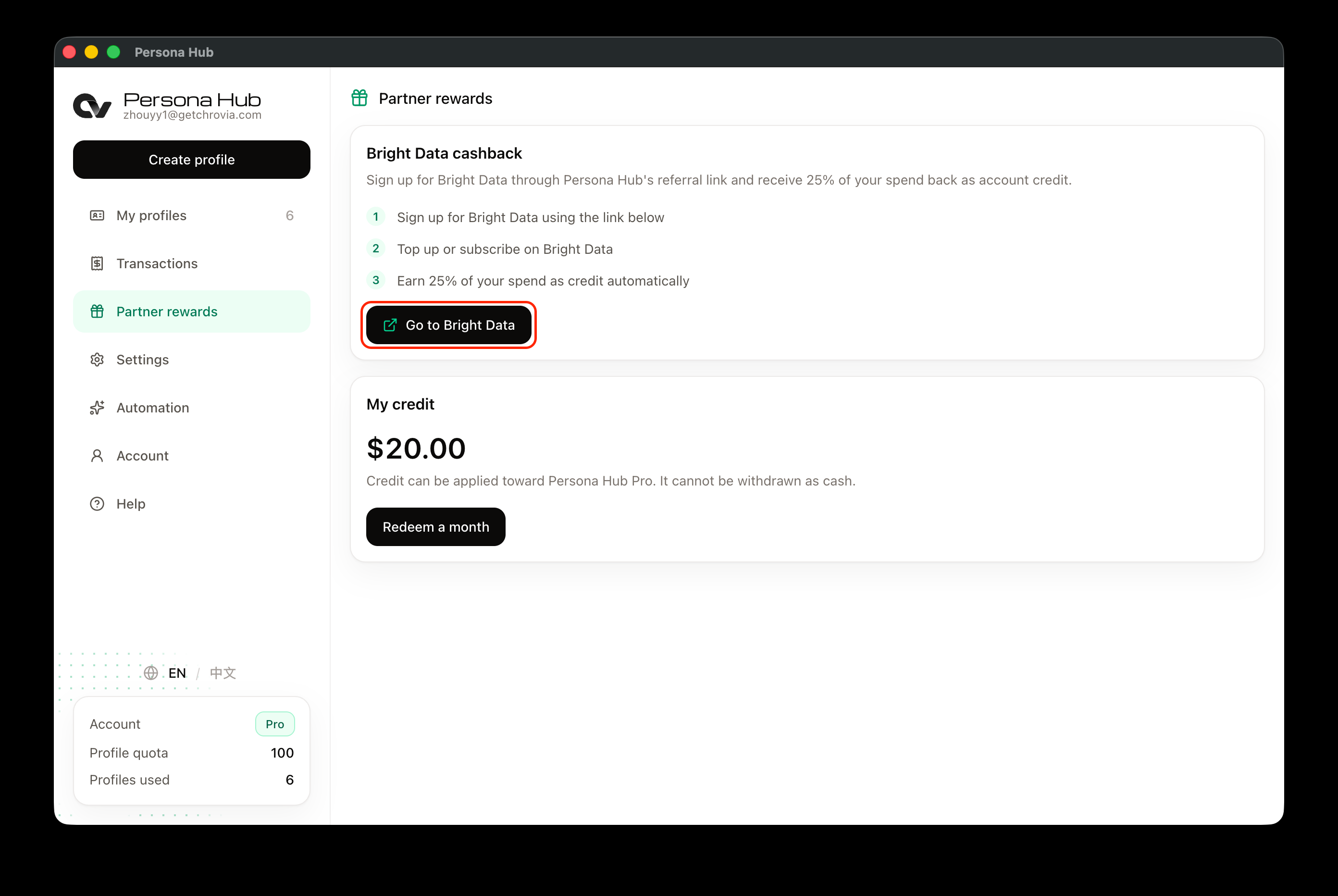
This button opens a link associated with your current Persona Hub account. Follow it to Bright Data and complete registration there. Going directly to the website through a search result or using someone else's referral link may prevent your spending from being credited to your account.
If you already have a Bright Data account, do not assume that clicking the link will link that existing account or credit past purchases.
2. Register and spend on Bright Data
Complete registration on the Bright Data page that opens, then top up or subscribe to a service as needed. Registration alone does not earn credit. Credit is added automatically to your Persona Hub account once the attributed transaction is reported.
At the current 25% rate:
- $20 in attributed spending earns $5 in credit, enough for one month of Pro.
- $80 in attributed spending earns $20 in credit, enough for four separate one-month redemptions.
Credit depends on transaction reporting and may not appear immediately after payment. The $20 balance in the screenshots is an example account balance, not a sign-up bonus.
3. Check your credit and start a redemption
Return to Partner rewards in Persona Hub and check the available balance under My credit. If the page still shows an old balance after spending, leave the page and open it again.
Once the balance reaches $5, click Redeem a month. The button is unavailable when the balance is below $5.
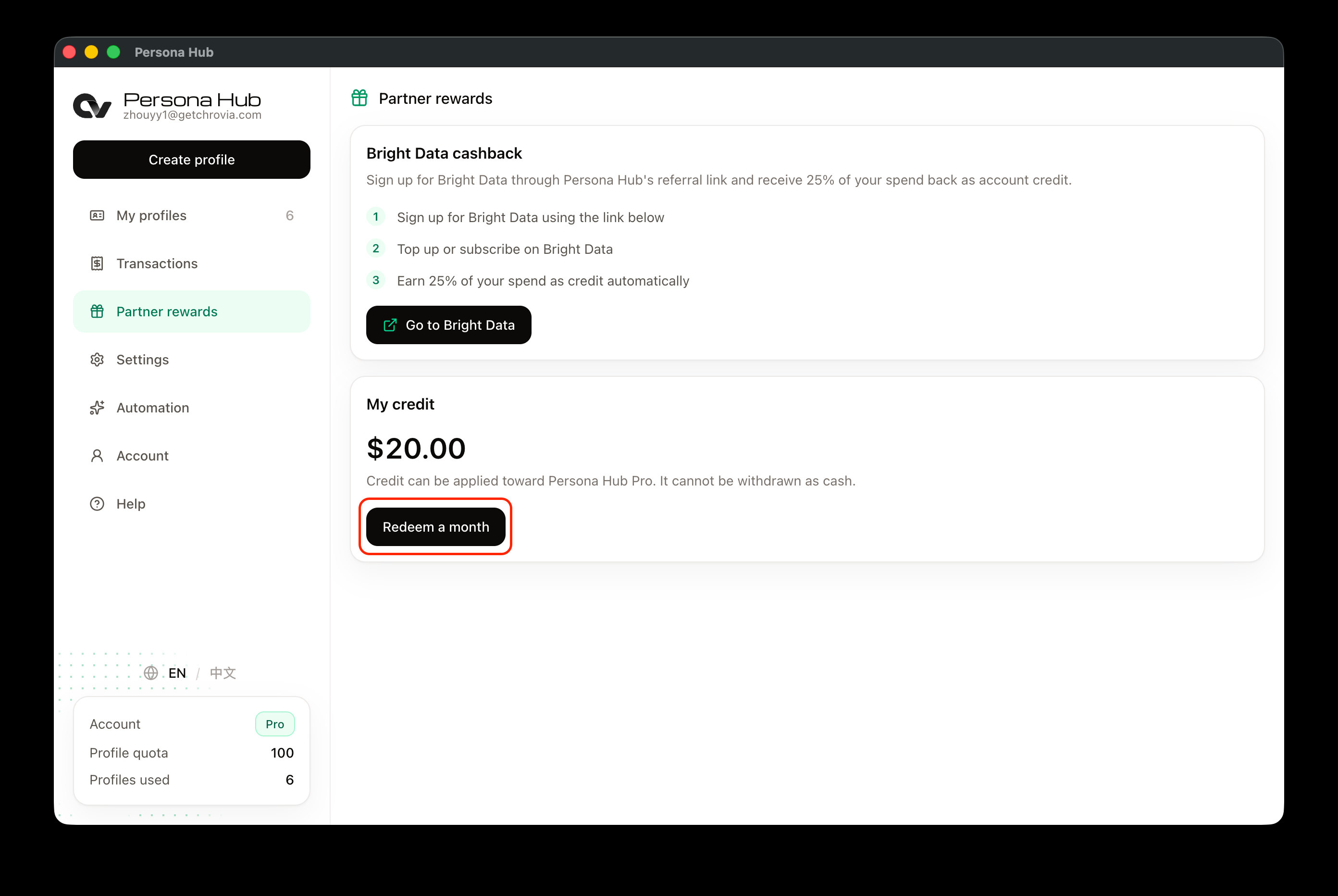
4. Confirm one month of Pro
The dialog asks you to spend $5 in credit for one month of Pro. Click Redeem a month in the dialog to confirm.
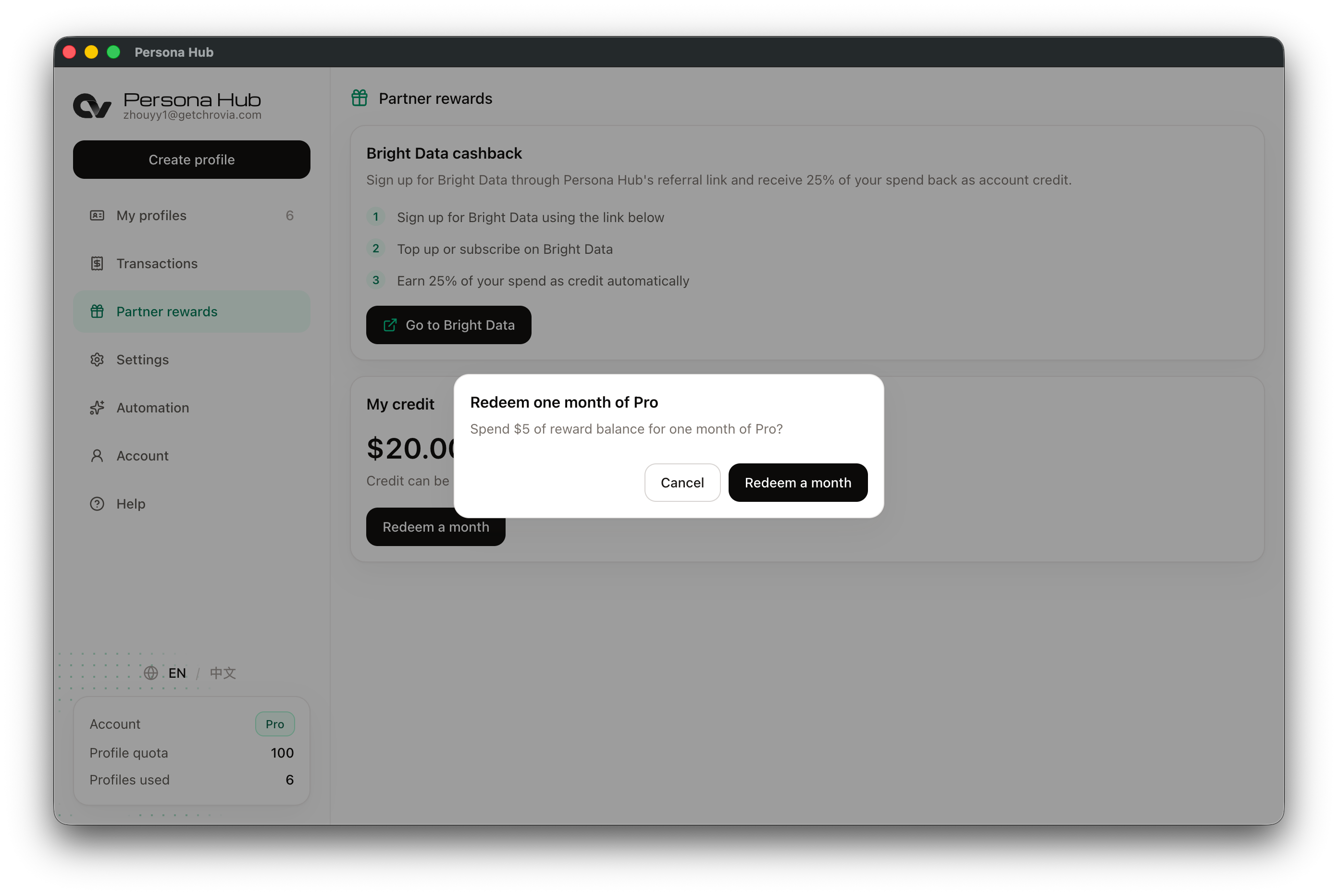
After a successful redemption, a confirmation appears and $5 is deducted from your available balance. For the $20 balance shown here, one redemption leaves $15. To add more months, repeat the process while you have enough credit. Each redemption adds one month.
5. Check your Pro status
Open Account in the sidebar to check your Pro status and the renewal or access end date shown there.
- If you have no remaining Pro access, the redeemed month starts now.
- If your Pro access has not expired, the redeemed month is added after your existing access ends. It does not replace the time you have left.
- If you have an active auto-renewing subscription, a successful redemption moves the next charge date back accordingly. Redemption itself does not create an auto-renewing subscription.
- If you have canceled auto-renewal, redemption still extends your Pro access without turning auto-renewal back on.
What if the credit has not appeared?
Check that you registered through Go to Bright Data in the correct Persona Hub account and completed a purchase on Bright Data. If the transaction has not been reported yet, return to Partner rewards later to check again.
If credit is still missing or redemption keeps failing, use the contact page to provide your Persona Hub account email and the relevant transaction details so the issue can be checked.