
How to create a profile in Persona Hub
Choose a name and appearance, optionally set up a node, then create and launch an independent browser profile.
A Persona Hub profile is an independent browser identity with its own browser data and settings. Follow these steps in the Persona Hub desktop app. If you haven't installed it yet, visit the download page.
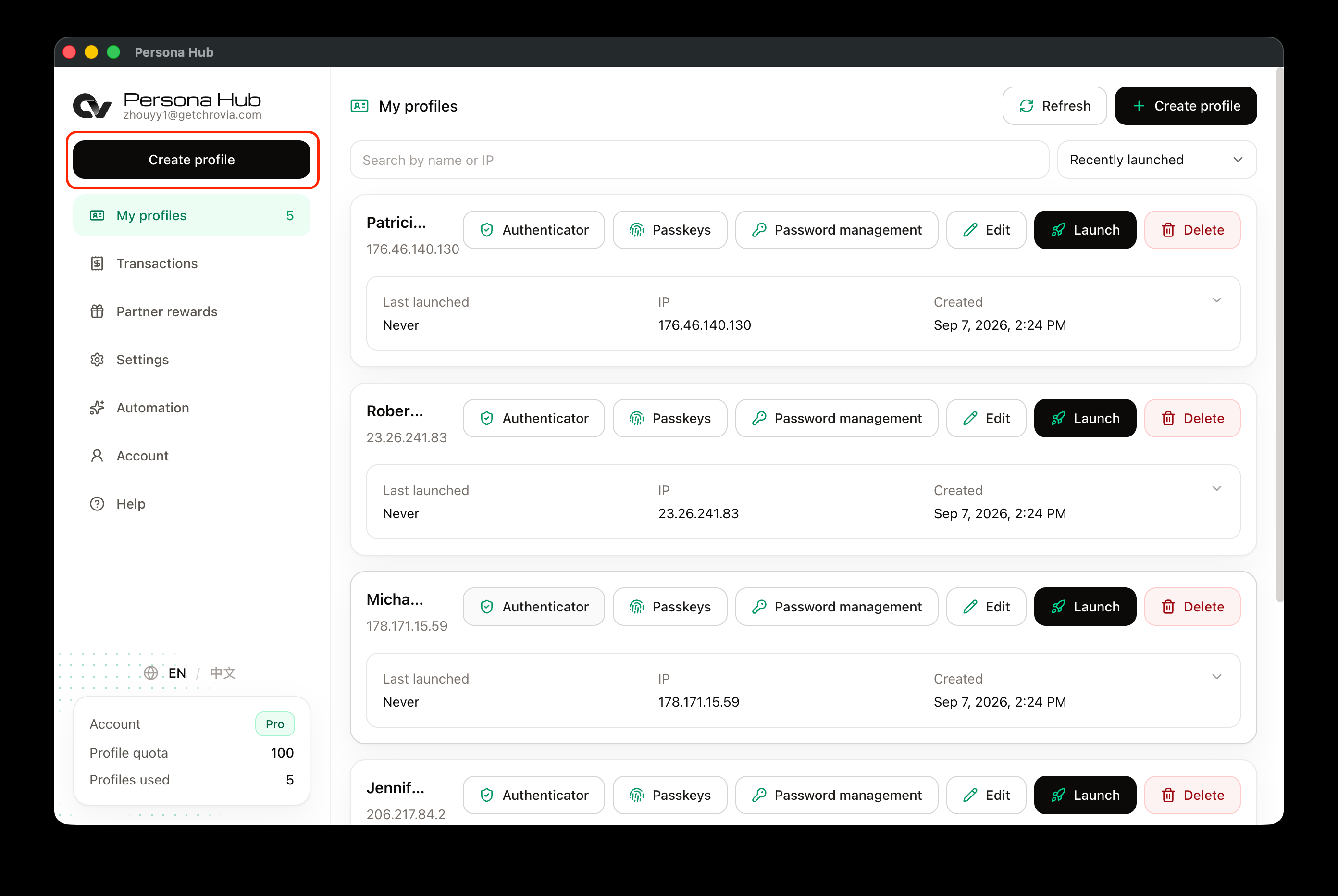
1. Open Create profile
Sign in to Persona Hub and click Create profile in the left sidebar. You can also use the button at the top right of My profiles.
2. Choose a name and appearance
Under Name & appearance, fill in:
- Profile name: a name you can easily recognize. This example uses David Morrison.
- Appearance label: a short label to help distinguish this browser window from others. This example uses DM.
- Background and Foreground: choose colors or keep the defaults. The preview on the right shows the icon and title-bar badge.
3. Add a node if needed
Network settings are optional. If you don't have a node, leave it blank and continue creating the profile.
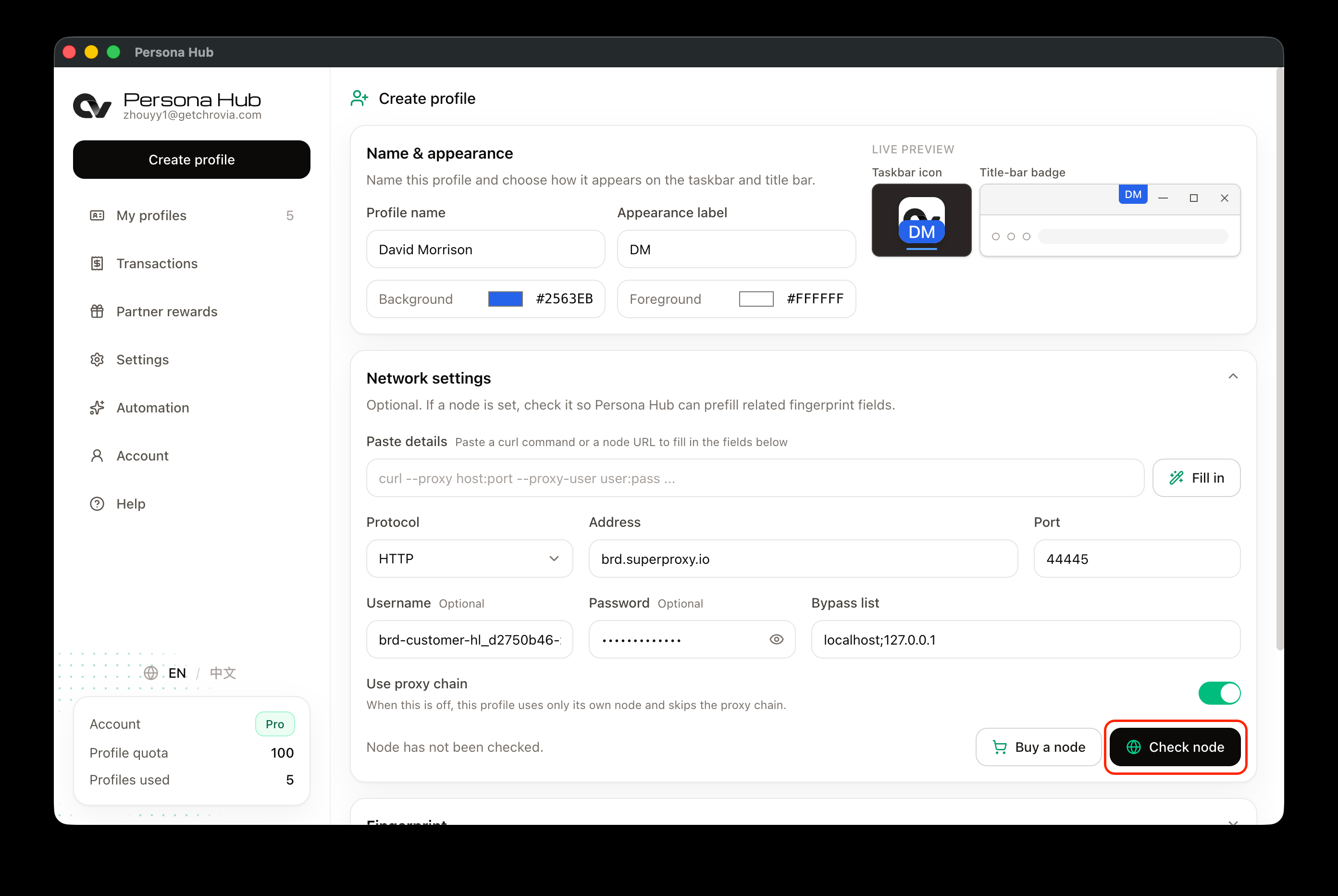
To use a node, enter the Protocol, Address, and Port supplied by your provider. If authentication is required, enter the Username and Password as well. These are the node's credentials, not the account you plan to sign in to on a website. Use your own node details rather than copying those in the screenshot.
If your provider supplies a curl command or node URL, paste it into Paste details, then click Fill in.
Use proxy chain controls whether this profile uses the proxy chain configured in Settings. When turned off, the profile uses only its own node.
Once the details are filled in, click Check node.
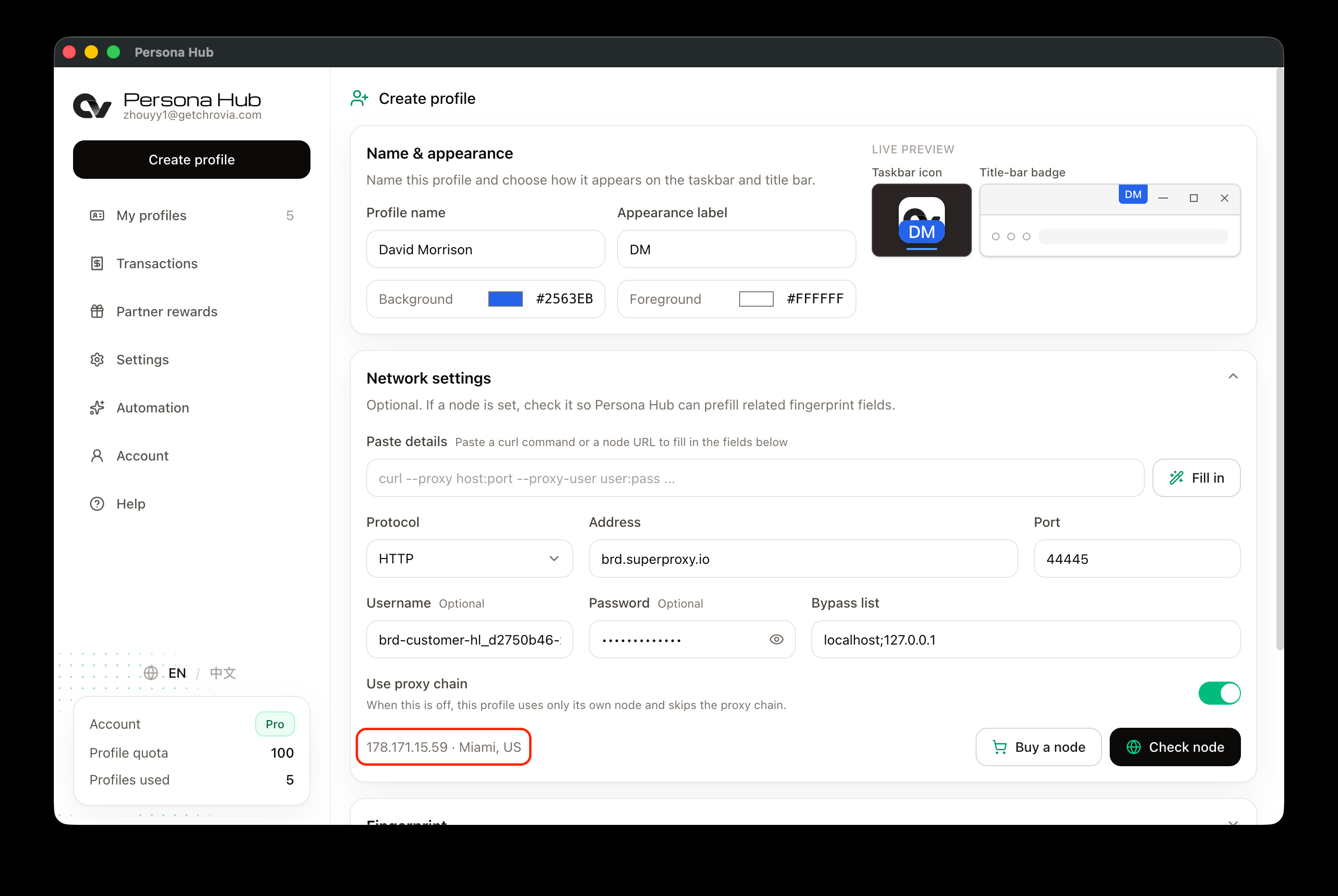
4. Check the result
A successful check displays the node's IP address, city, and country below the network settings. This example shows Miami, US. Persona Hub also fills in the timezone under Fingerprint based on the result.
If a node is configured, it must pass the check before you can create the profile. If the check fails, verify the address, port, and credentials, then try again. Check the node again after changing its configuration.
You can adjust Fingerprint and the startup settings below, or keep the defaults if you don't need specific settings.
5. Create and launch
Scroll to the bottom of the form and click Create profile. Once it is created, Persona Hub returns to My profiles, where the new profile appears.
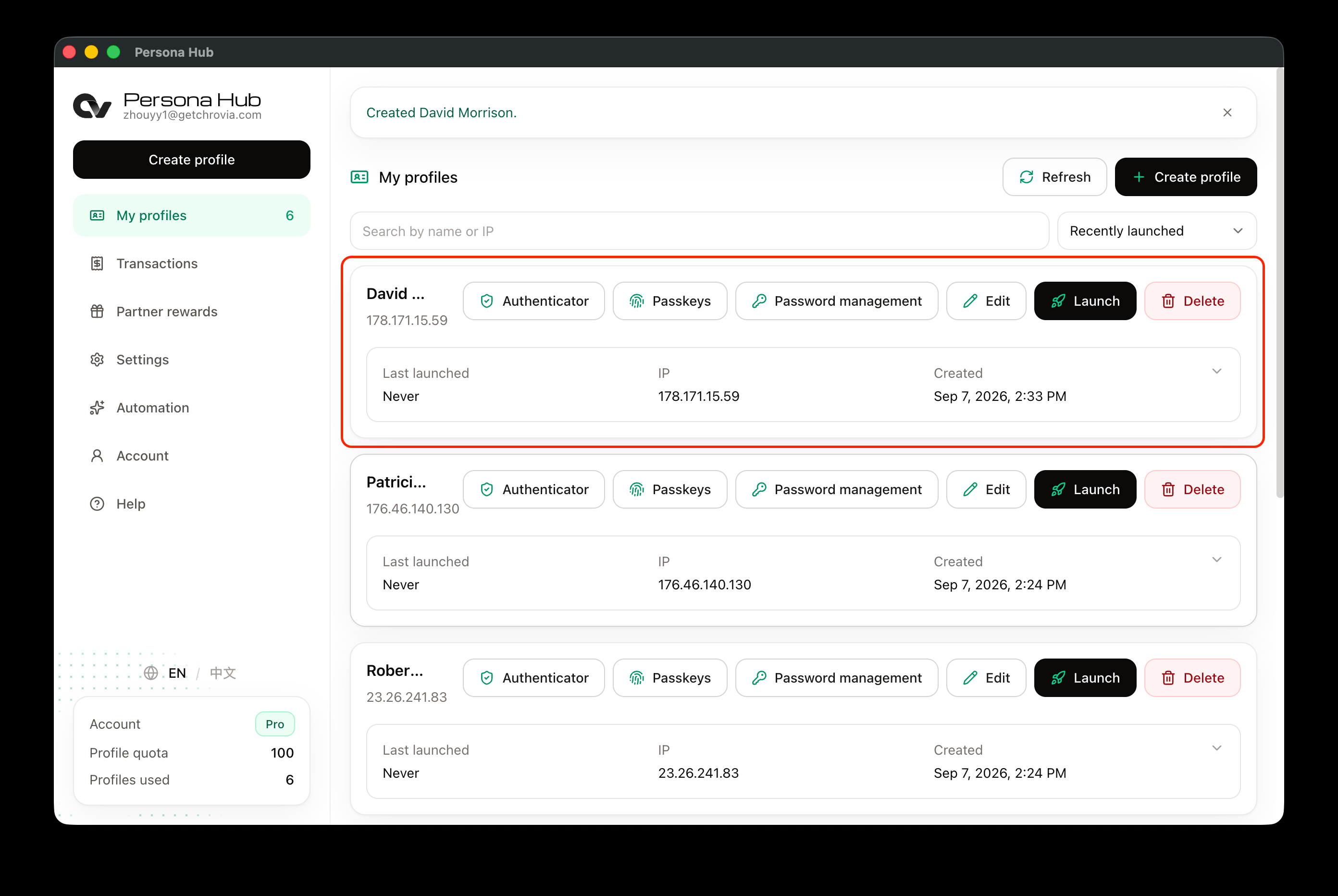
Click Launch on the profile to open its own browser window, then visit a website and sign in. To use the same account later, launch this profile from the list again. There is no need to create a new one. For a walkthrough, see How to launch a profile browser.