
How to manage website passwords
Save website passwords in a Persona Hub profile browser, then view, add, edit, or delete them in Password management.
Password management stores website usernames and passwords for future sign-ins in the same profile browser. Password records belong to individual profiles; they are not the password for your Persona Hub account.
This guide uses Proton Mail in the David Morrison profile to demonstrate password sync and management, available with Pro. If the profile browser is not open yet, see How to launch a profile browser. The website account shown is an example.
1. Save a password in the profile browser
Open the website in the profile browser, enter the username and password, and sign in. When the browser asks to save the password, check the account details and click Save. You can also open the save prompt using the key icon on the right of the address bar.
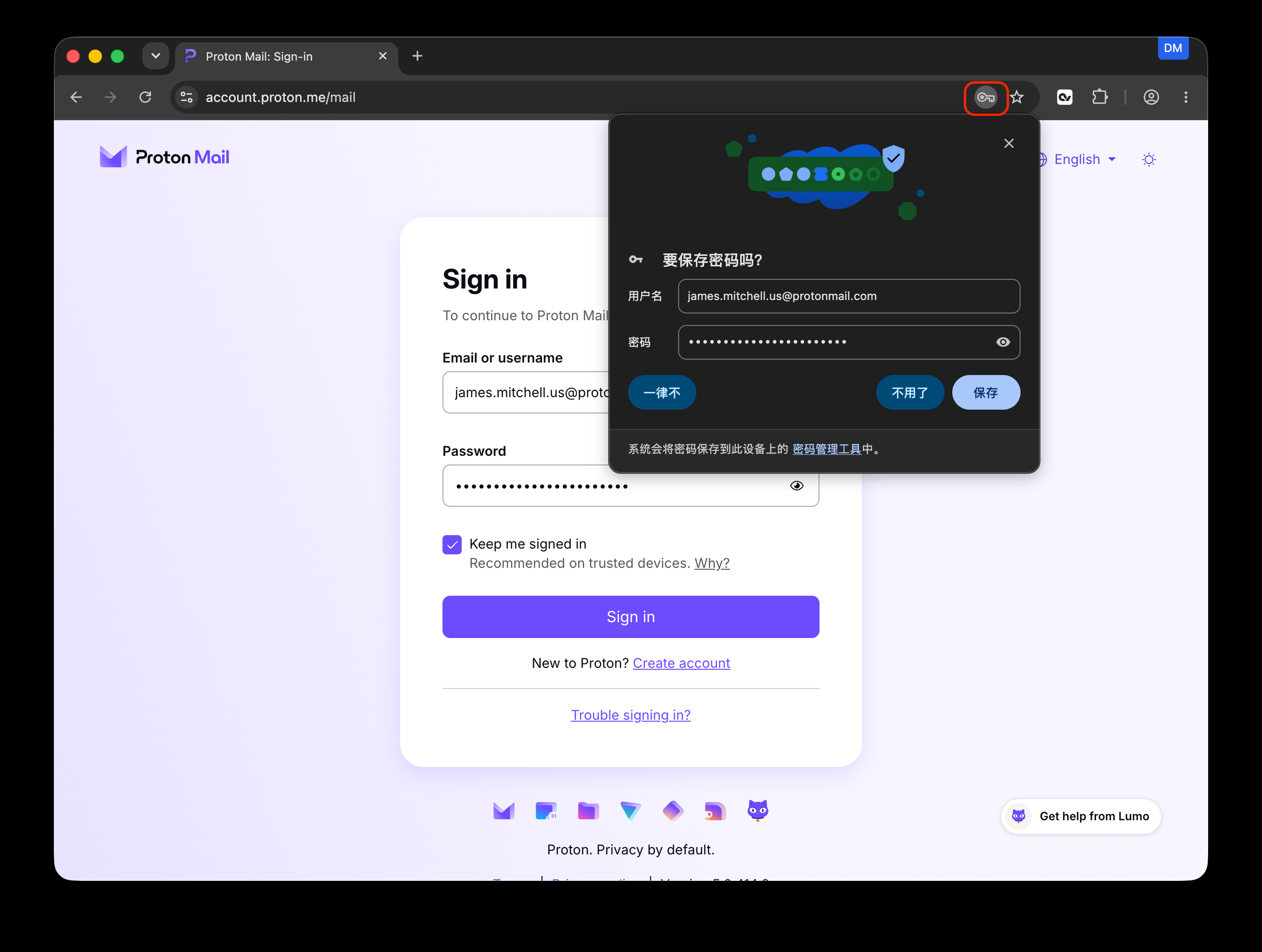
The blue DM label in the upper-right corner identifies the profile. Check that you are saving the website account in the intended profile browser.
2. Open Password management
Return to My profiles in Persona Hub, find the profile you just used, and click Password management.
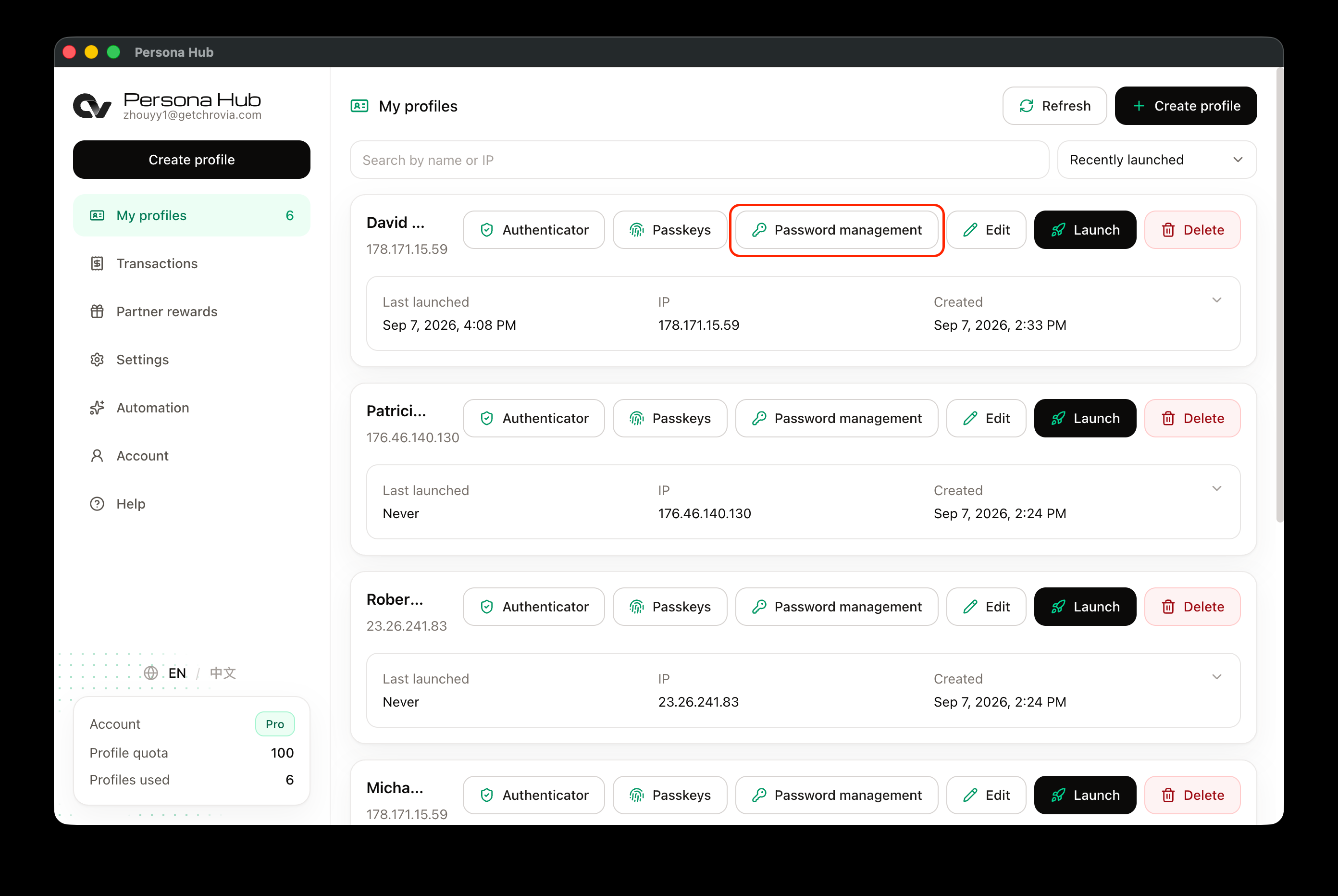
This is a Pro feature. If the button is missing, check your current plan under Account.
3. Check the saved record
The page title identifies the profile. In the screenshot, Password management · David Morrison contains the Proton Mail username and the website address https://account.proton.me/mail saved in the previous step.
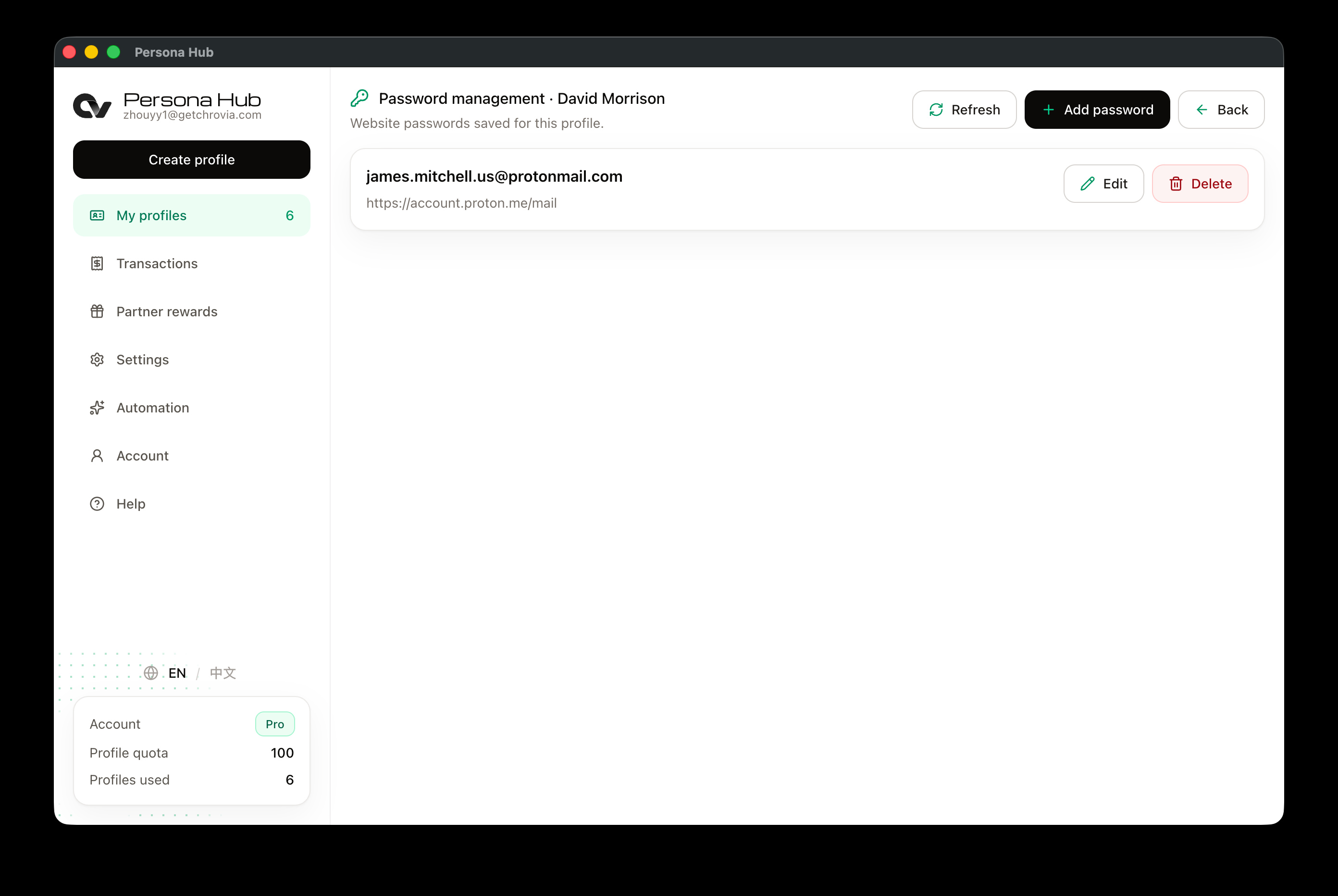
If the record has not appeared, keep Persona Hub running and online, wait briefly, then click Refresh. This page shows passwords synced for the selected profile, not a shared vault for every profile.
4. Add, edit, or delete a password
- Add password: Enter the Website, Username, and Password, then click Add password. Use the full address of the relevant sign-in page for the website.
- Edit: Update a record's website, username, or password, then click Save. The eye icon in the password field toggles its visibility.
- Delete: Remove a record you no longer need and confirm in the dialog.
These actions only change the saved record. They do not change the password on the website or delete the website account. After changing a password on a website, update the saved record to match.
Use the password next time
Launch the same profile, open the website's sign-in page, and use the browser's saved-account suggestions. Whether the browser fills the fields automatically or asks you to select an account depends on the site's form. Saving a password does not automatically complete sign-in.
After adding, editing, or deleting a password in Persona Hub, close all browser windows for that profile and Launch it again from My profiles to load the latest records.
For websites that also require a rotating verification code, see How to use TOTP authentication. For sites that support passkeys, see How to use passkeys.