
How to use TOTP authentication
Scan a website's authenticator QR code in a Persona Hub profile browser, save the TOTP entry, and copy rotating codes from the extension or management page.
TOTP is a time-based one-time password. After you enable authenticator-based two-step verification on a website, it typically asks for this code during sign-in. Persona Hub saves authenticator entries separately for each profile and displays the current code with its remaining validity time.
This guide uses Proton's authenticator setup as an example. First, launch the profile browser and sign in to the website there. Do not scan from a different profile or your system browser. Authenticator features are available on both Free and Pro plans.
1. Display the website's authenticator QR code
Open the website's account security settings and choose an authenticator app. The screenshot shows Proton's Account and password page with the Set up authenticator app dialog opened from Authenticator app settings.
Keep the entire QR code visible in the current page. Click the Persona Hub extension icon in the browser toolbar, open Authenticator, and click Scan QR code.
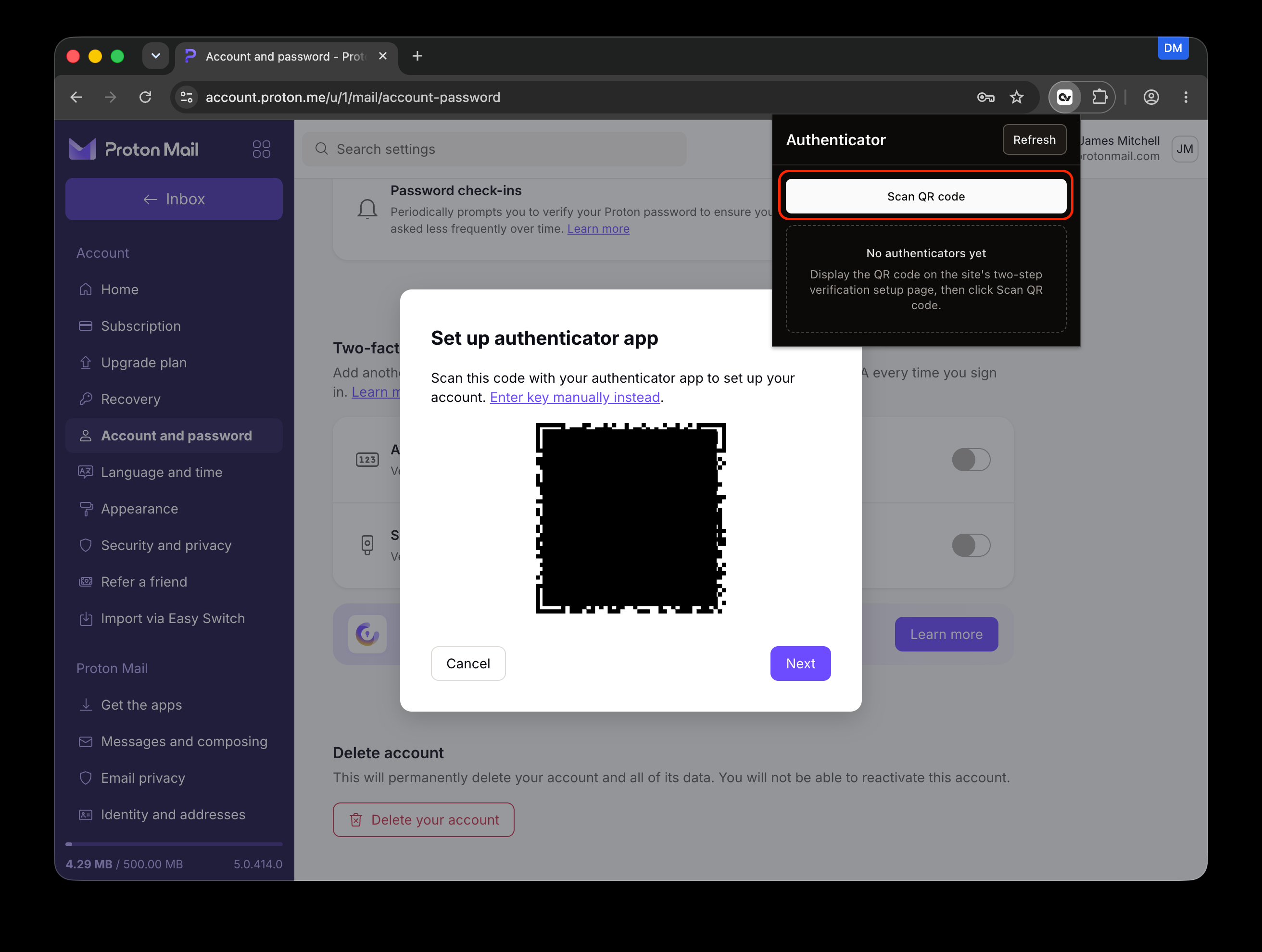
The extension scans the visible area of the active tab; no phone camera is needed. The QR code is hidden in the screenshot. Use the complete code displayed by the website for your own account.
2. Check the saved entry and finish verification
After a successful scan, the extension shows a Saved message and a new code card. In the screenshot, the entry starts with Proton and shows a six-digit code, seconds remaining, and Copy and Delete buttons.
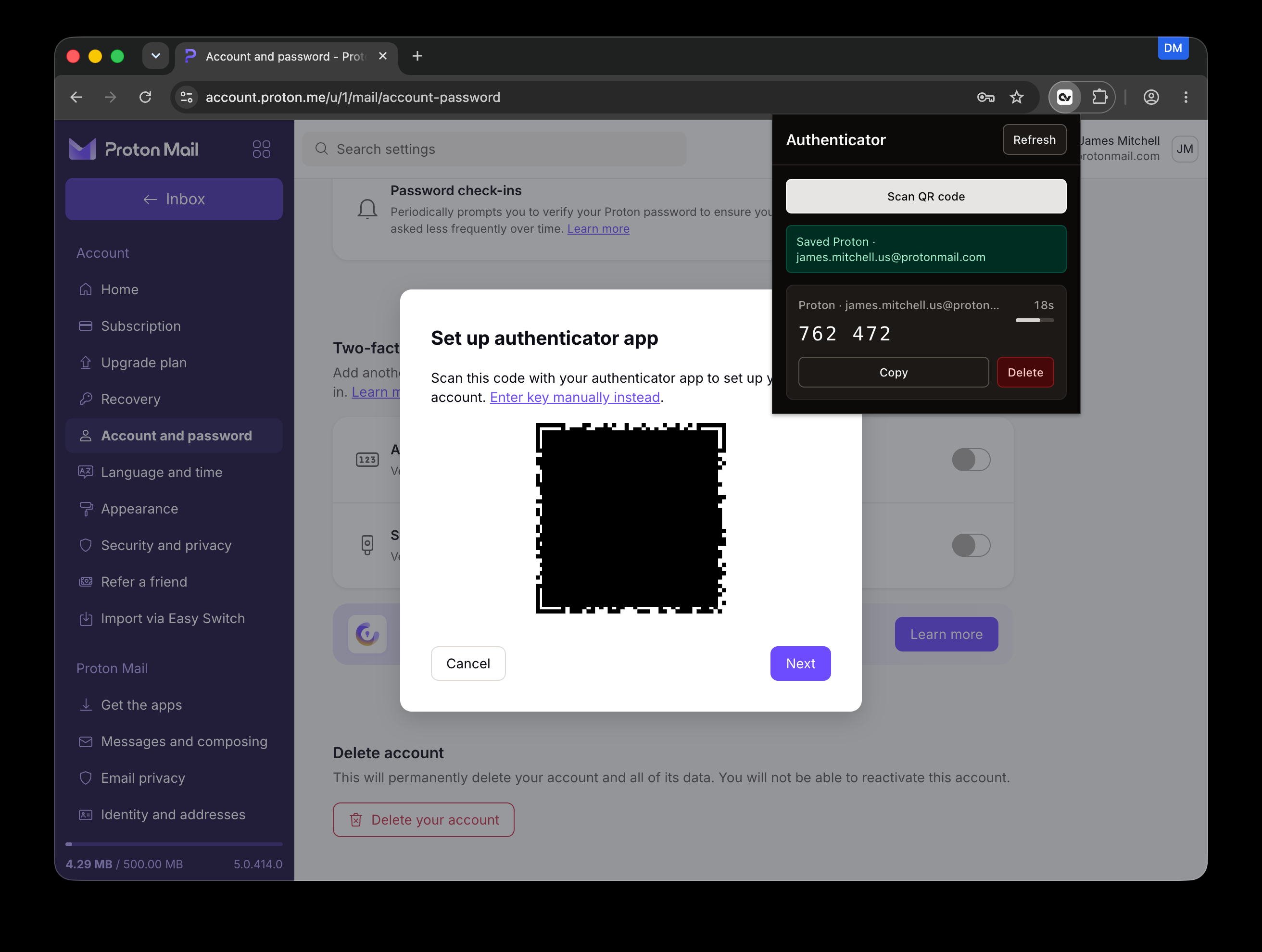
Click Copy, then return to the website to continue setup. The next button in the screenshot is Next. Follow the site's remaining steps, enter the current code, and complete verification. A Saved message only confirms that the authenticator entry was saved; it does not mean two-step verification is already enabled on the website.
Codes change over time, so do not use the numbers in these screenshots. If the countdown is about to finish, wait for a new code before copying it.
3. Open Authenticator in Persona Hub
Return to My profiles in Persona Hub, find the profile you used, and click Authenticator.
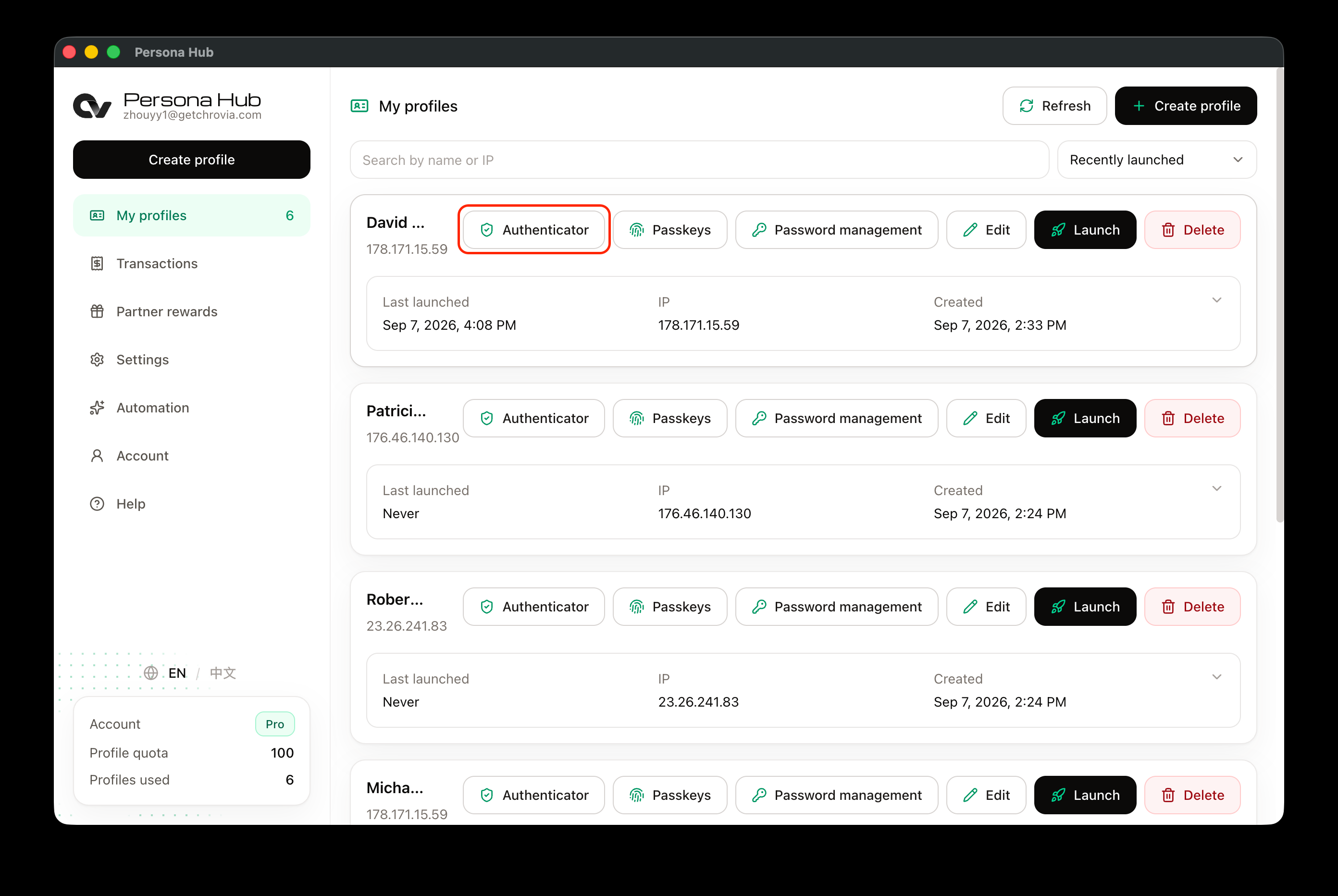
4. View and copy the current code
The page title identifies the profile. Each entry shows the website and account, the current code, and seconds remaining. The screenshot shows the Proton entry under Authenticator · David Morrison.
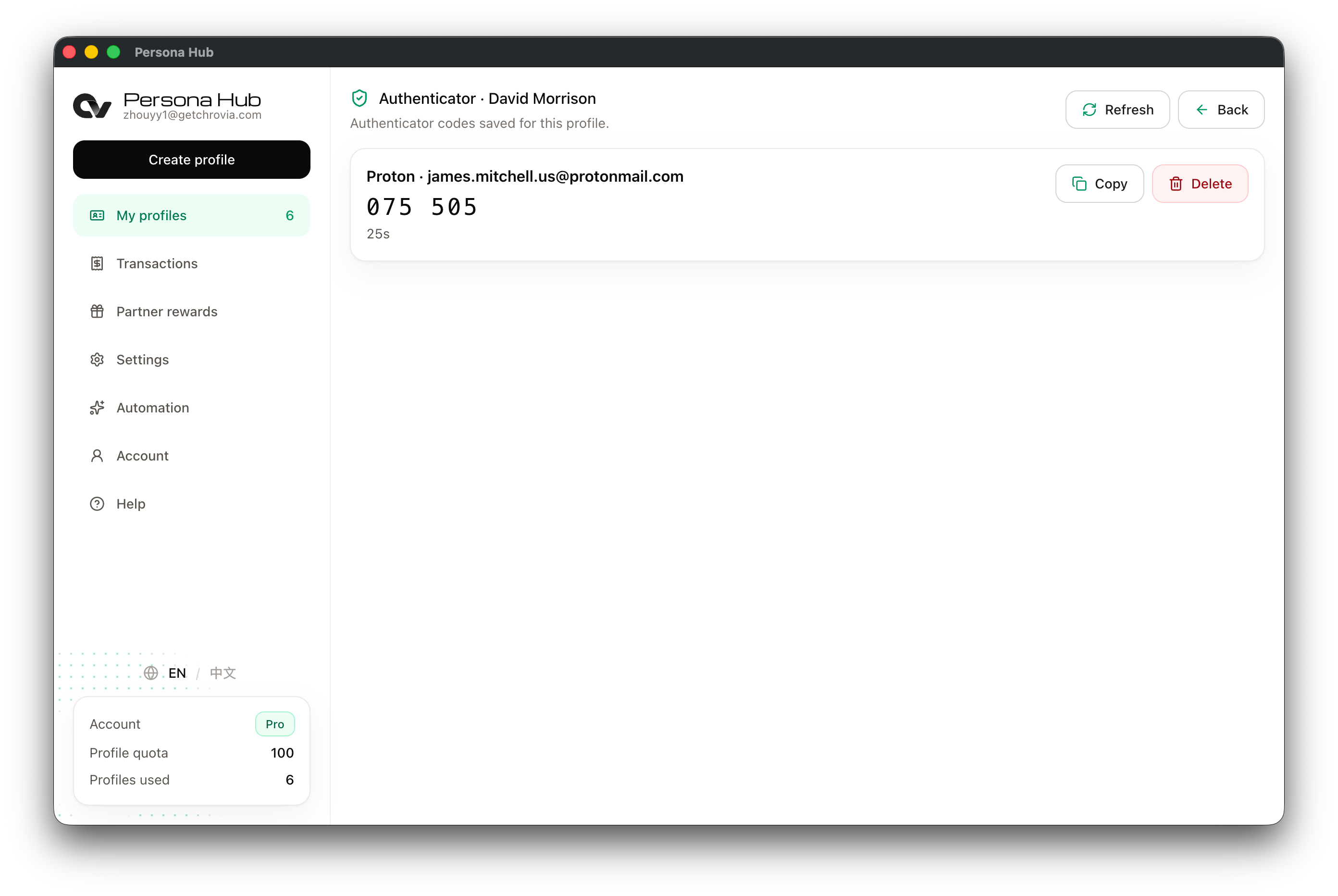
When the website asks for an authenticator code, click Copy here and paste it into the website. You can also copy it directly from the extension in the profile browser. Click Refresh if a newly scanned entry has not appeared.
Deleting entries and troubleshooting
- Delete an entry: Click its Delete button. The management page asks for confirmation. After deletion, that entry can no longer generate codes. Removing it from Persona Hub does not disable two-step verification on the website.
- No QR code found: Check that the entire QR code is visible in the active tab. Adjust the scroll position or zoom and try again.
- Unsupported QR code: Use the TOTP QR code from the website's authenticator-app setup, not a QR code for sign-in, payment, or another purpose.
- Code rejected: Check that the entry belongs to the correct website account, the code has not expired, and your computer's date and time are accurate. If the website generated a new authenticator secret, scan its new QR code.
- Extension cannot load or save: Keep Persona Hub running and signed in, and check the network connection. If needed, close the profile browser and launch it again from Persona Hub.
TOTP and website passwords are different credentials. For passwords, see How to manage website passwords. If the website supports passkeys, see How to use passkeys.